Help centre
Documentation
Everything you need to get the most out of PrepFlow, from your first sign-up to your next perfect score.
Getting started
01Welcome to PrepFlow
PrepFlow is an exam-prep platform built around one thing: practising with real, structured quiz questions until you're actually ready. You pick a course, choose how you want to practise — a specific topic or a random mix — and PrepFlow grades you instantly, tracks every attempt, and shows you exactly where you're weak.
On the Pro and Premium plans you also get PrepFlow's AI study tools: written explanations of the questions you got wrong, Flo — an AI study coach you can chat with about any course — and AI marking of your written answers to practical questions.
This guide works for both computers and phones. Use the Desktop / Mobile switch at the top to see the screenshots and directions for the device you use. Every screenshot is from the live platform.
02Creating your account
Go to Registration and fill in your full name, email address, registration number, password, university and department.
Your university and department decide which courses you'll see later, so choose the ones that match where you actually study — a course only appears for students at the university it belongs to.
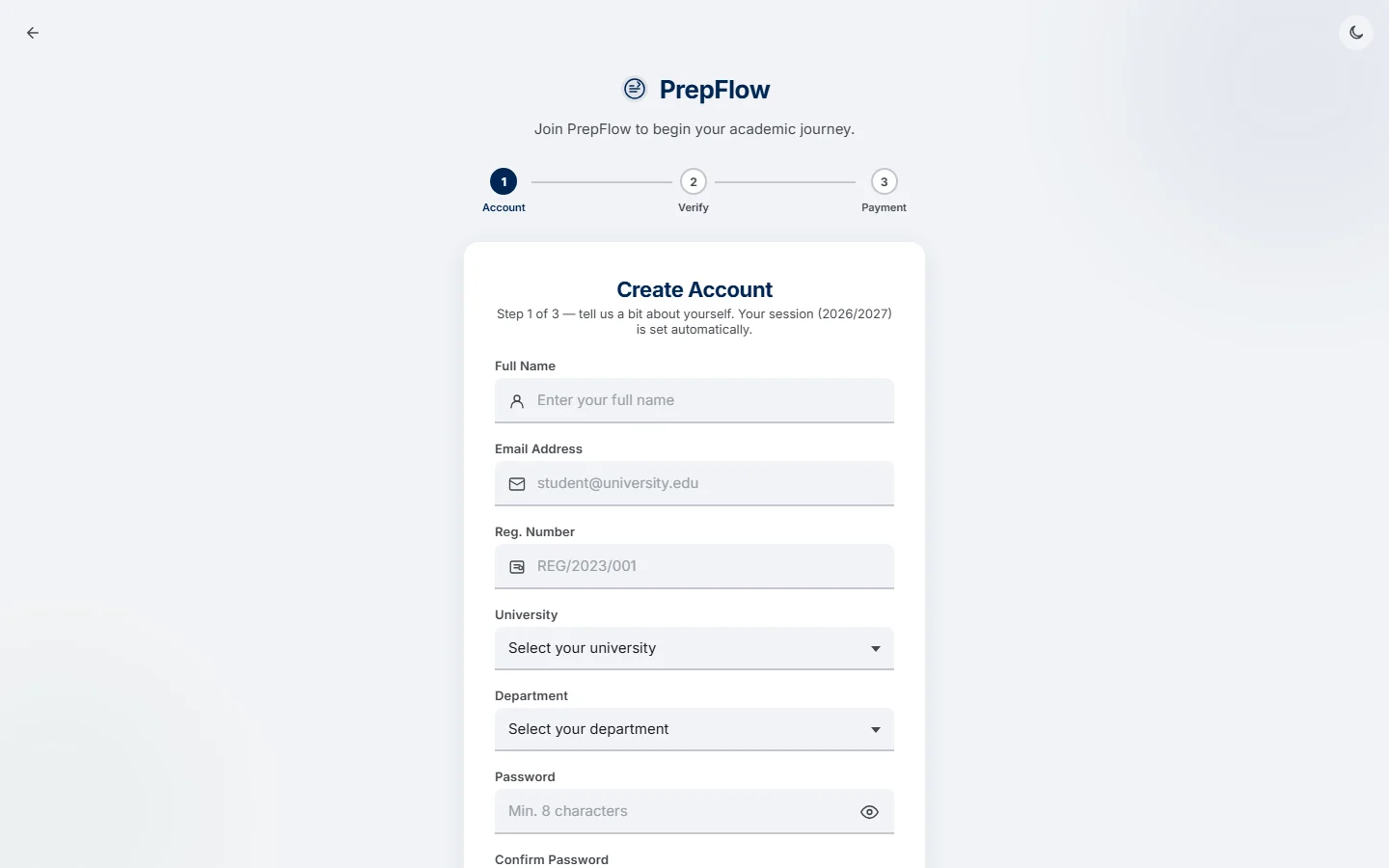
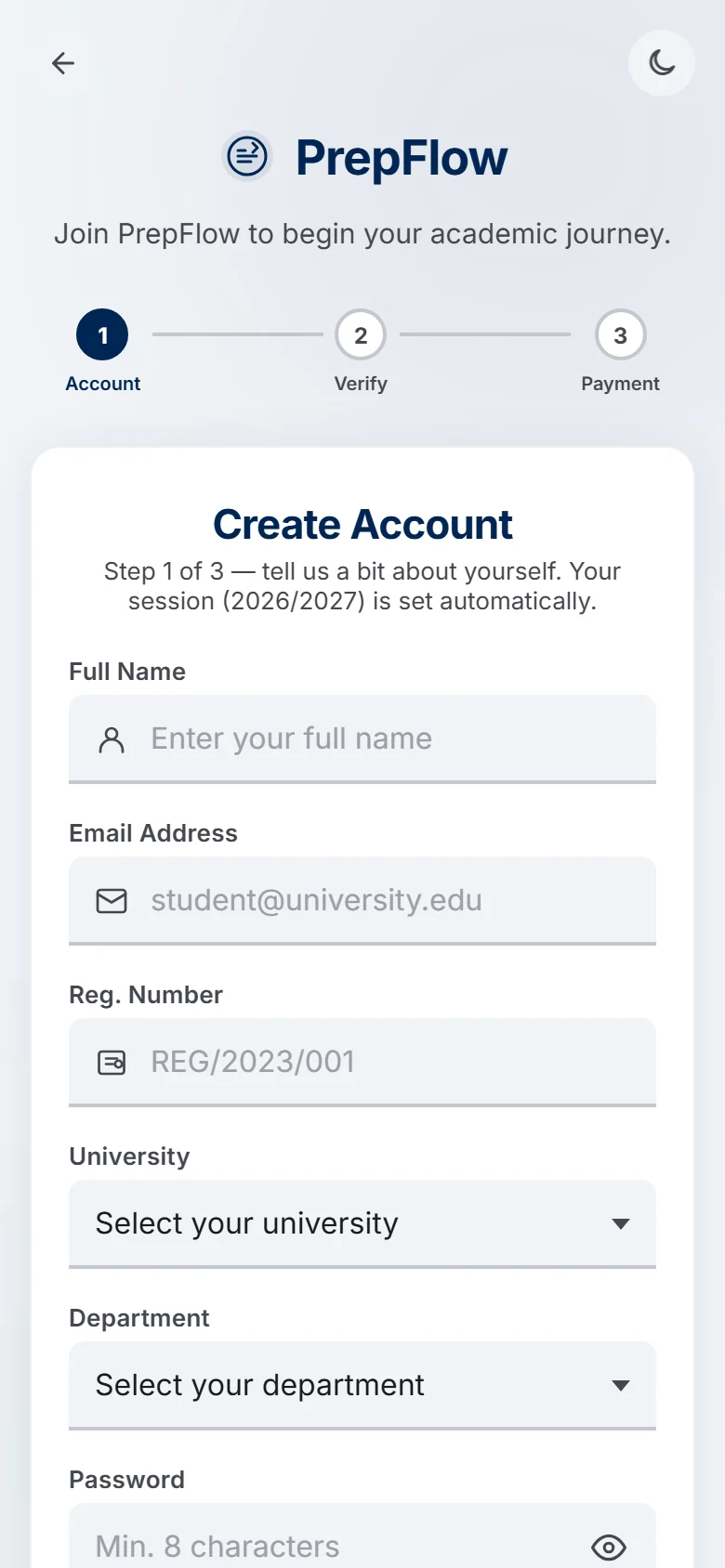
After you submit the form, check your email for a verification link — you need to confirm your address before you can log in. If it hasn't arrived within a couple of minutes, check your spam folder before trying again.
03Plans & subscribing
Once your email is verified, you'll choose a plan before you can reach your dashboard. Every plan unlocks every course and quiz feature for your department — the plans differ only in how much of PrepFlow's AI you get:
| Plan | Price | AI study tools |
|---|---|---|
| PrepFlow Annual Access | ₦5,000 / year | Not included |
| PrepFlow Pro | ₦25,000 / year | 30 AI requests a day |
Payment is handled securely by Paystack — card, bank transfer and USSD all work.
- Upgrading — already subscribed and want AI, or more of it? Open Profile → Upgrade plan. You only pay the difference between your current plan and the new one, and your expiry date stays the same.
- What you paid for is what you keep — your plan's features are fixed when you pay, so later price or plan changes never reduce what you bought.
- Not sure yet? Try any plan free for 24 hours first — see Free 24-hour demo.
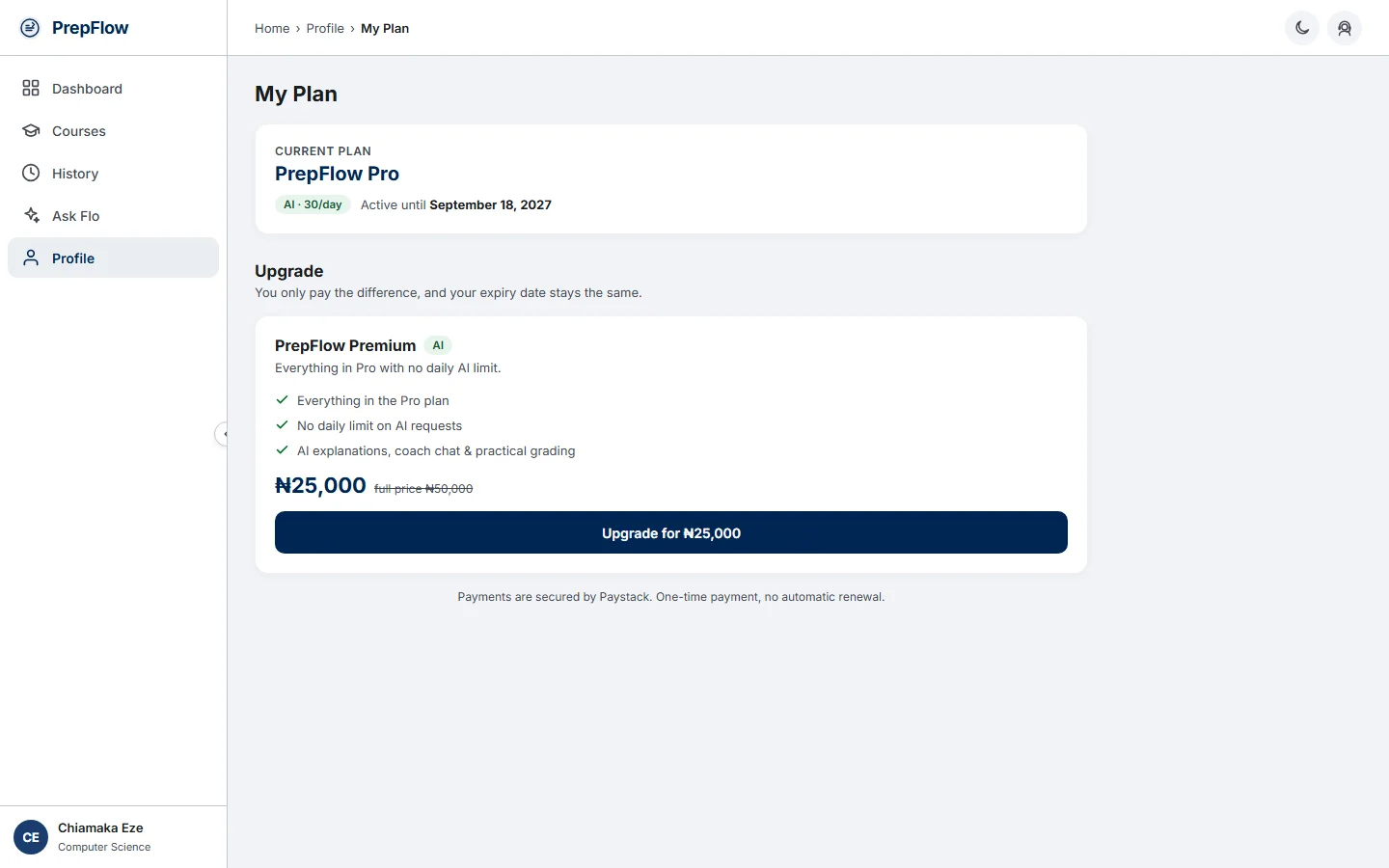
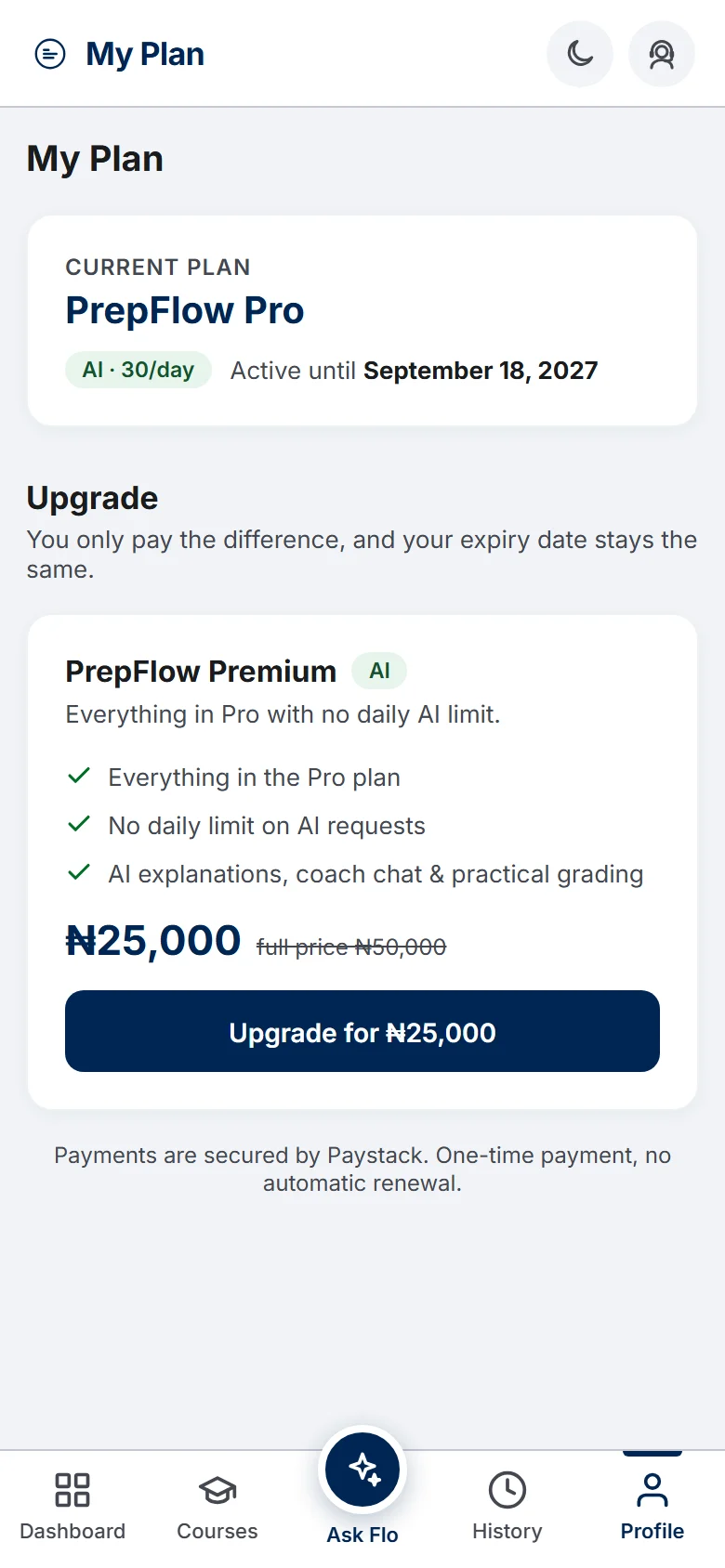
If a payment seems to have gone through but your account still shows as unsubscribed, don't pay again — contact us first (see Getting help). It's usually a quick fix on our end.
04Free 24-hour demo
On the plan page, every plan has a Try a free 24-hour demo button. It lets you use PrepFlow exactly as a subscriber on that plan would — including the AI tools on Pro and Premium — for 24 hours, with no payment.
- The demo uses a special Nigerian Current Affairs course, so you can try real quizzes, results, answer review, practical questions and Flo before paying.
- A banner at the top of every page shows how much demo time is left. Leave and come back any time within the 24 hours — the button changes to Continue demo.
- Group practice and plan changes aren't available during a demo.
- When you're ready, pay from the same page. Demo activity is kept separate, so your real history starts clean.
05Logging in
Log in with your registration number (not your email) and your password.
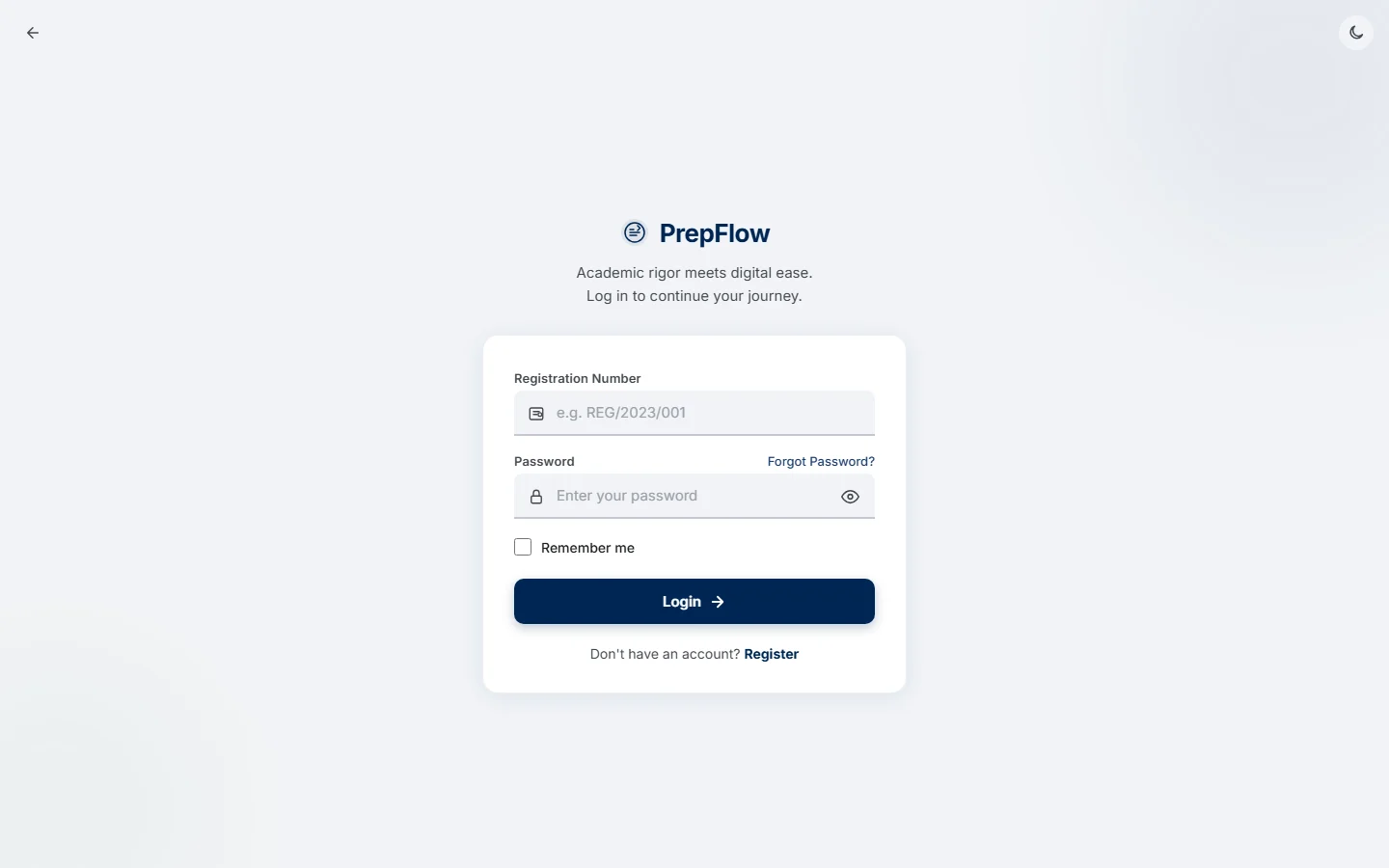
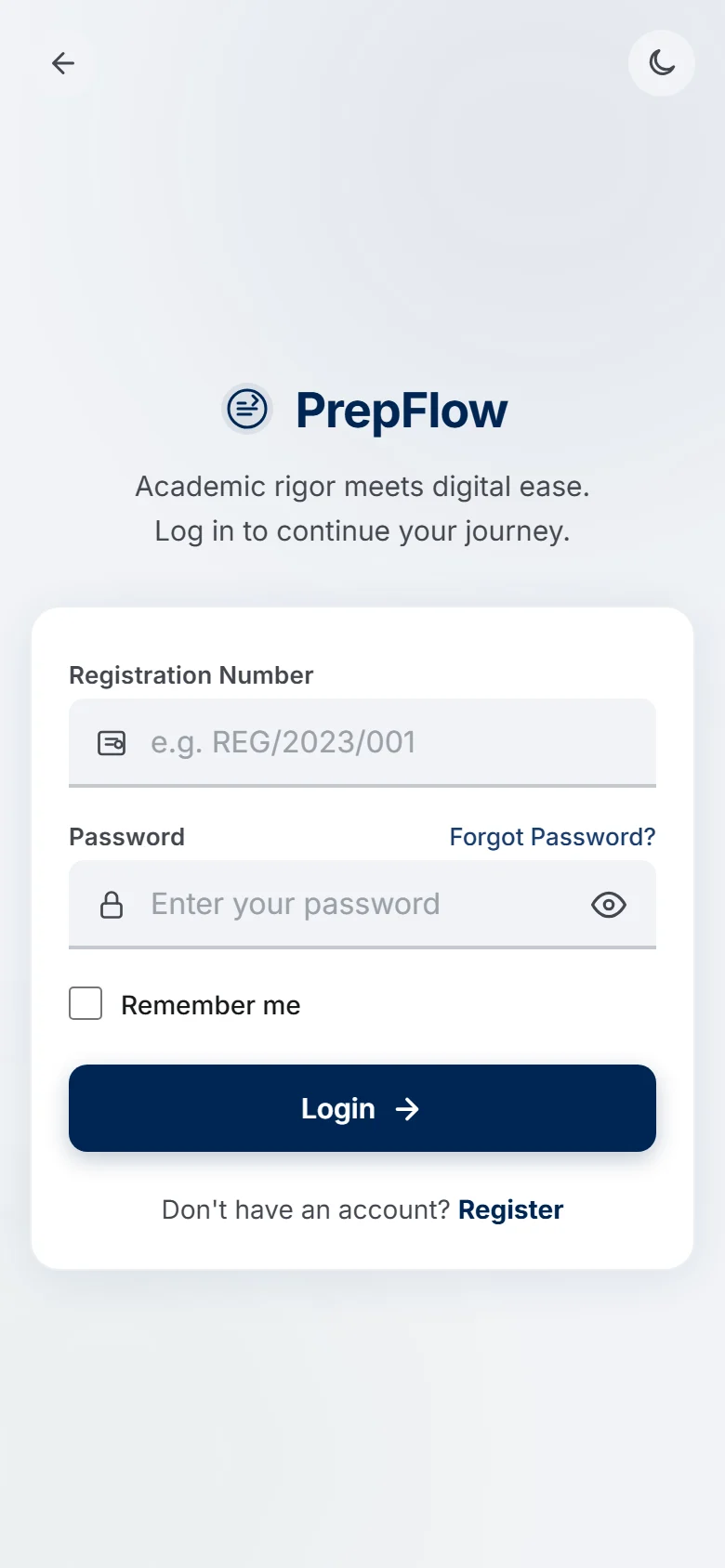
PrepFlow allows one active session at a time. Logging in on a new device signs you out everywhere else — if you're suddenly logged out, that's usually why.
Practising
06Your dashboard
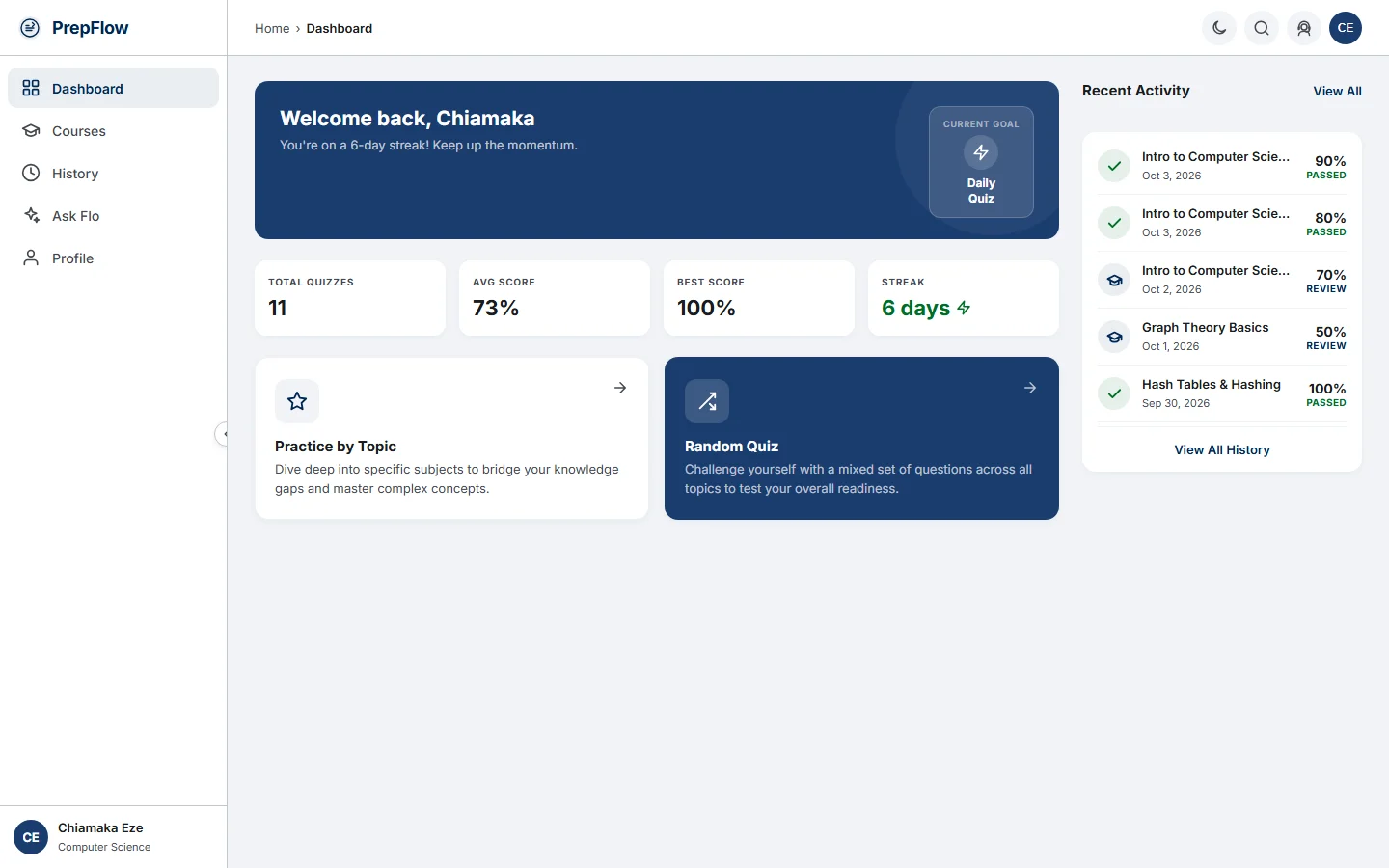
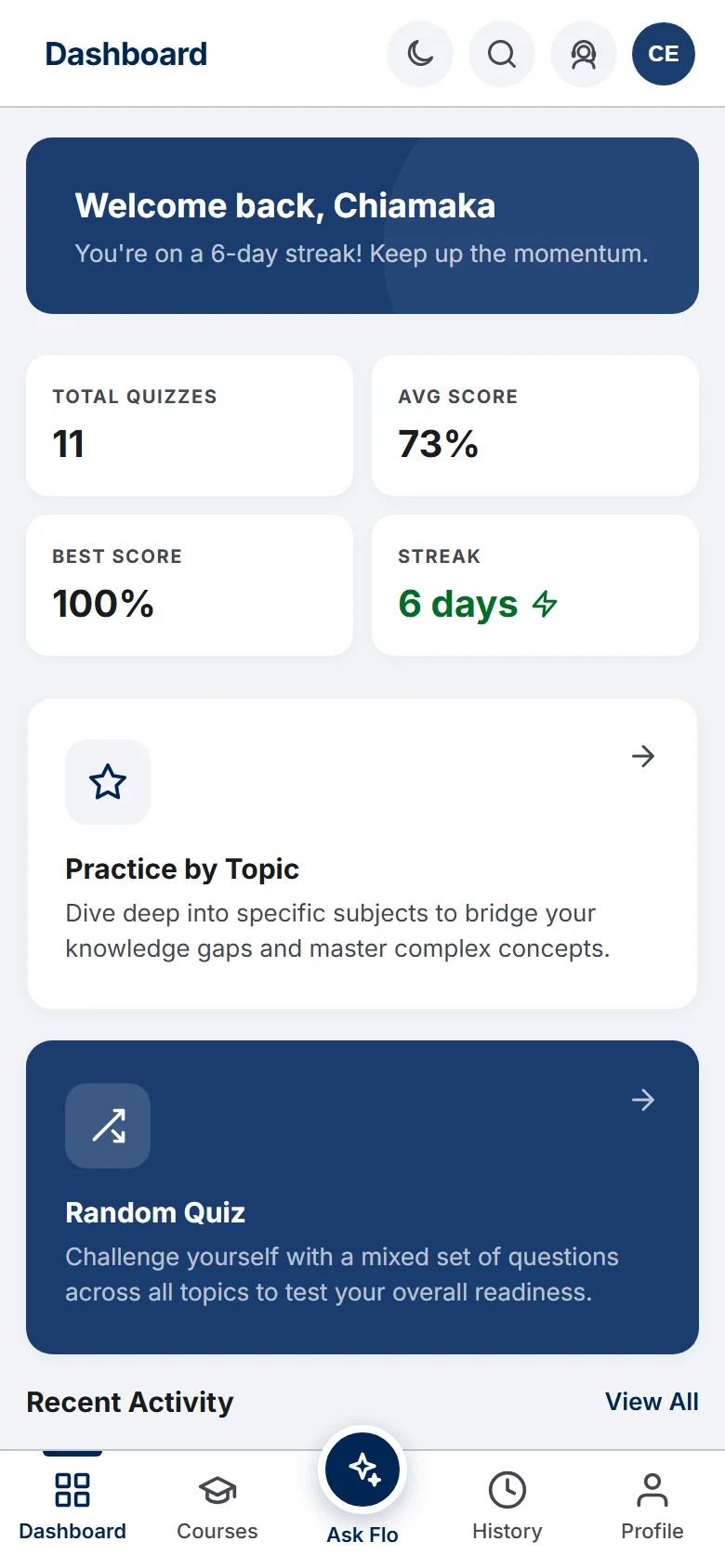
This is home base. At a glance you'll see your total quizzes, average score, best score and daily streak, plus your most recent activity. Two shortcuts sit front and centre:
- Practice by Topic — drill into one subject when you know exactly what you're weak on.
- Random Quiz — a mixed set of questions across every topic in a course, good for a general readiness check.
The menu on the left takes you to Dashboard, Courses, History, Ask Flo and Profile.
The menu at the bottom of the screen takes you to Dashboard, Courses, History and Profile, with Ask Flo raised in the middle.
First time here? If you've never taken a quiz, PrepFlow shows you a short guided tour the first time you open your dashboard. Skip it at any point, and replay it any time from Profile → Take the tour again.
07Choosing a course
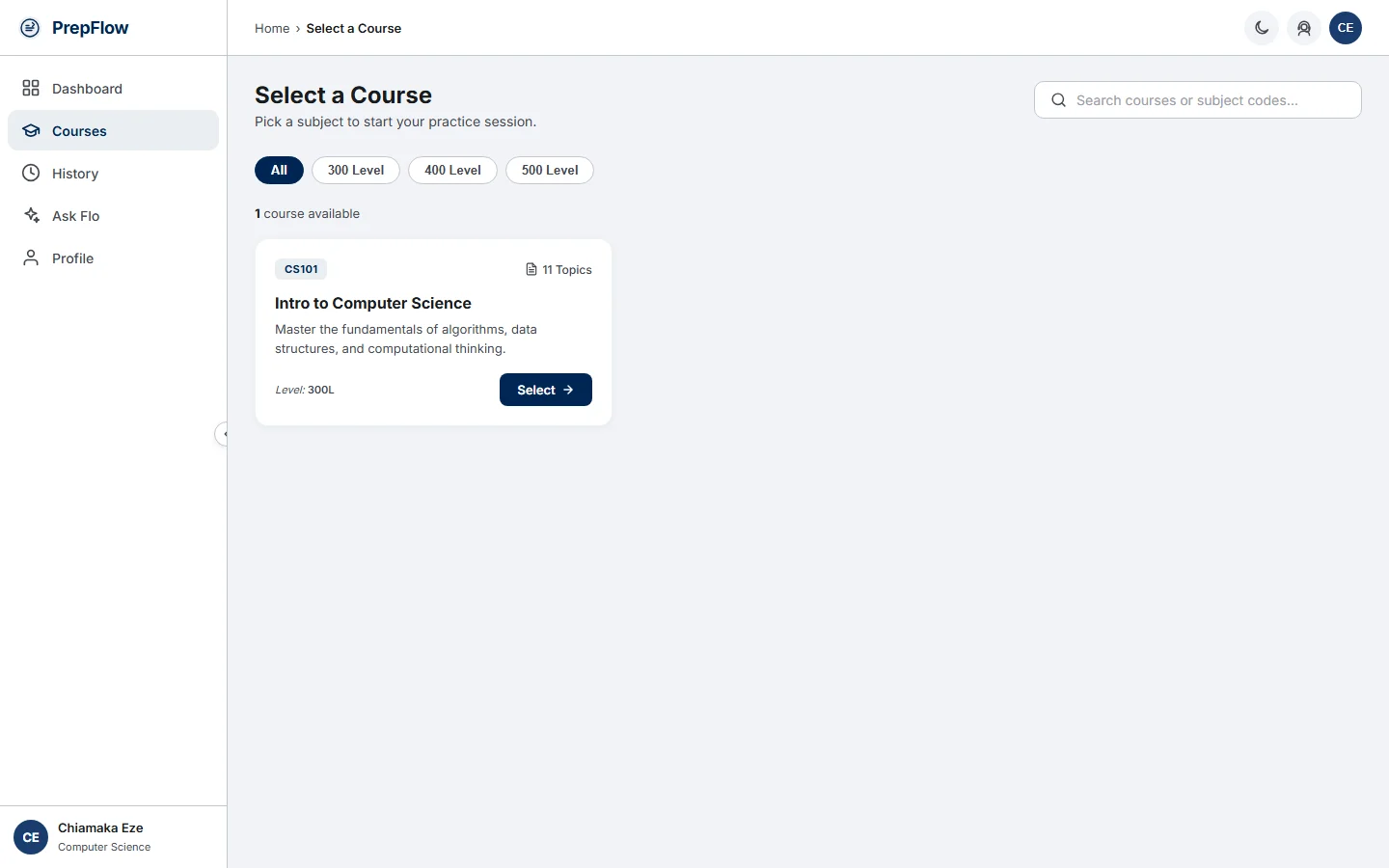
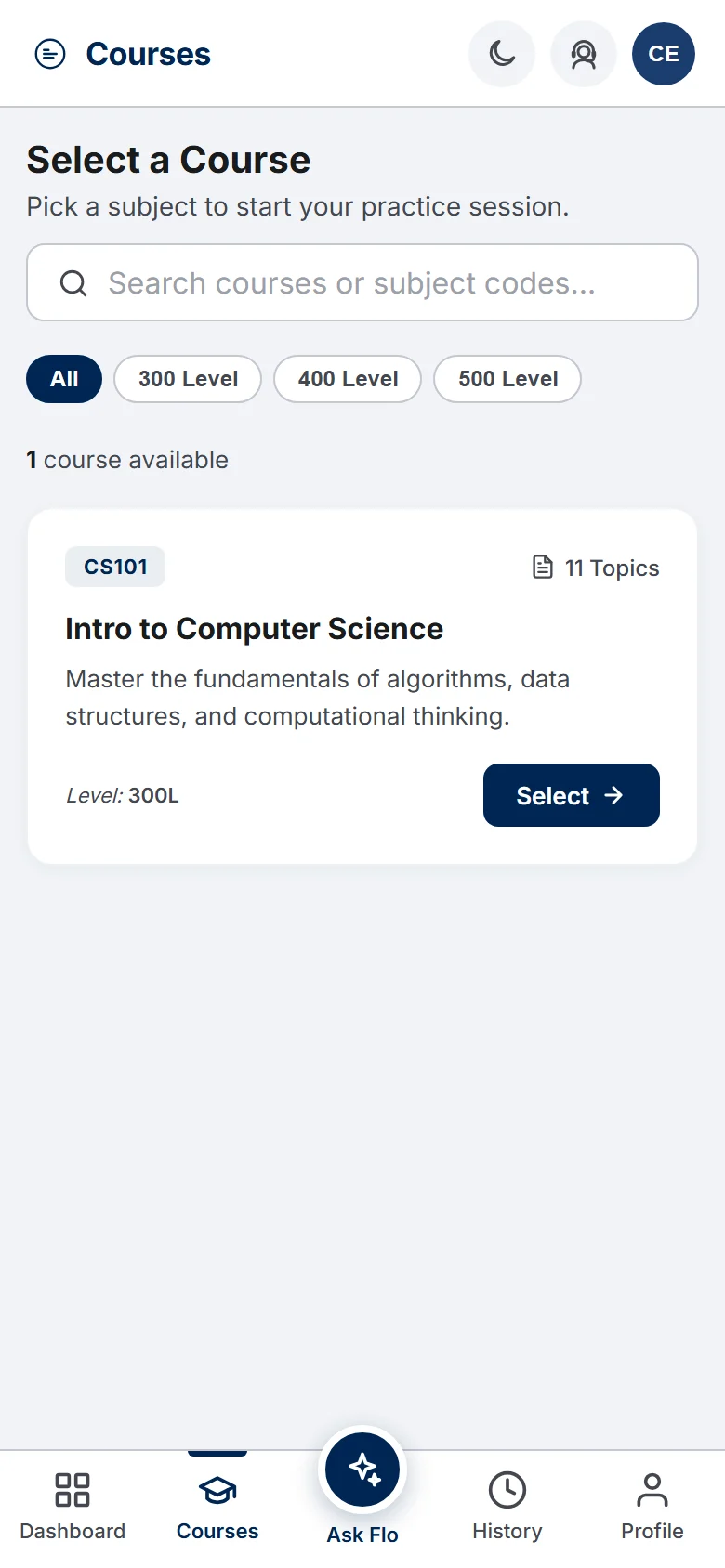
The Courses page lists every course available to your department, with the number of topics each covers. Filter by level, or search by course name or code. Select a course to see its topics before you start a quiz.
08Setting up a quiz
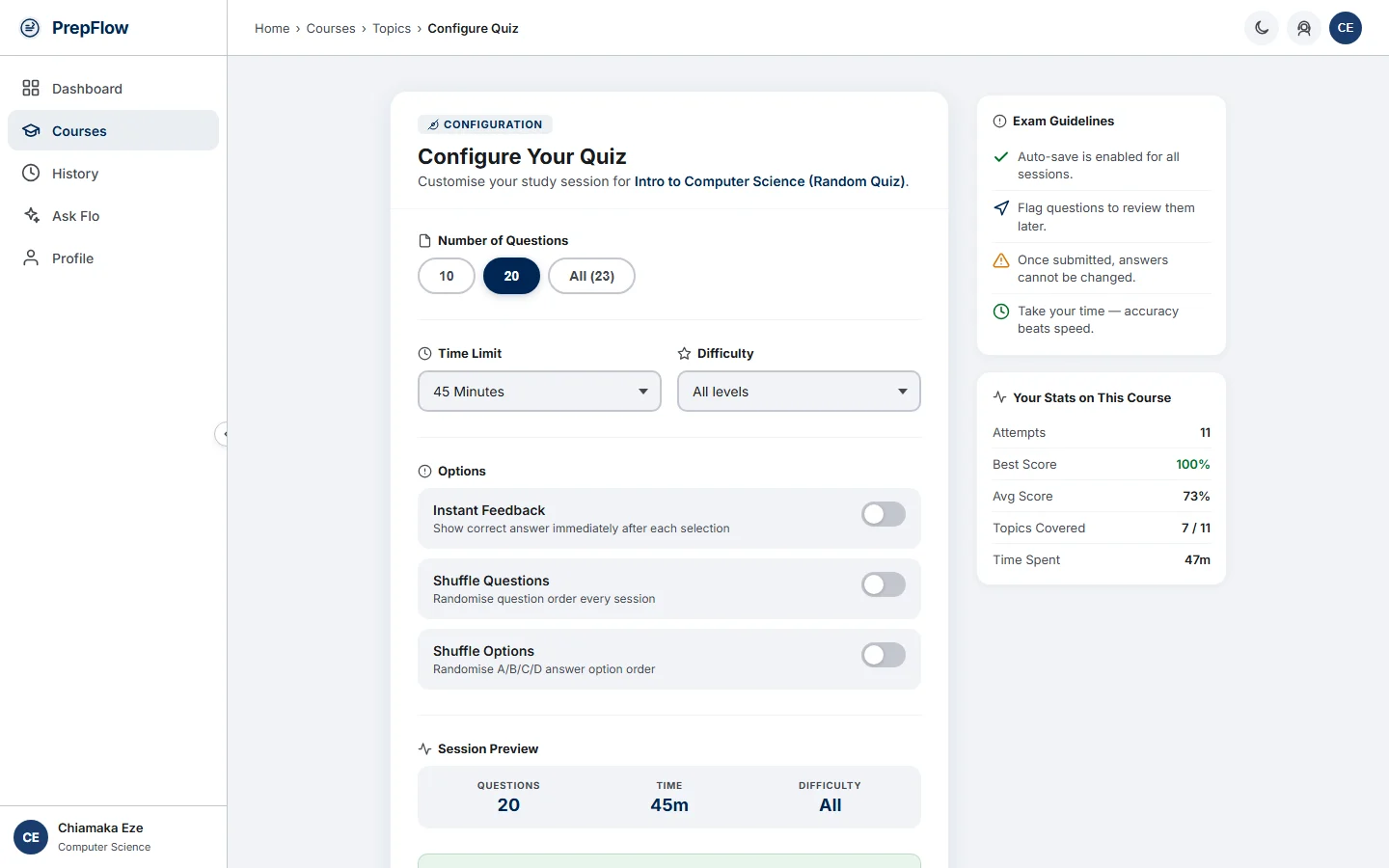
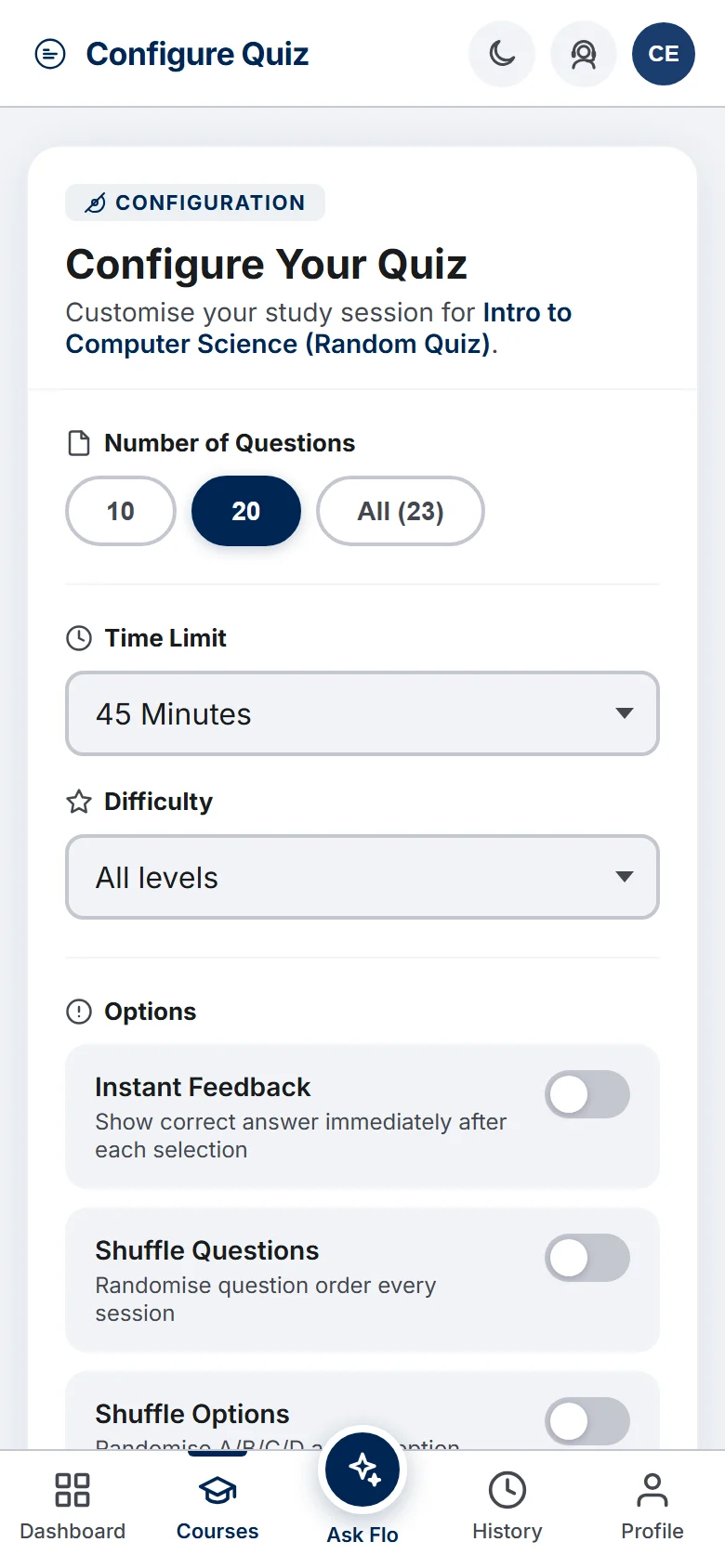
Before a quiz starts, you choose exactly how you want it:
- Number of questions and difficulty — easy, medium, hard, or all levels.
- Time limit — or none at all, if you'd rather work untimed.
- Shuffle questions / options — so a repeat attempt isn't just muscle memory.
- Instant Feedback — off by default. With it off, nothing about correctness is shown until you submit, and you can change any answer until then. Turn it on to see whether each answer is right the moment you pick it (this also locks the answer in).
Then tap Start Quiz to practise alone, or Practice with Friends to turn the same setup into a group session (see Practice with friends).
09Taking a quiz
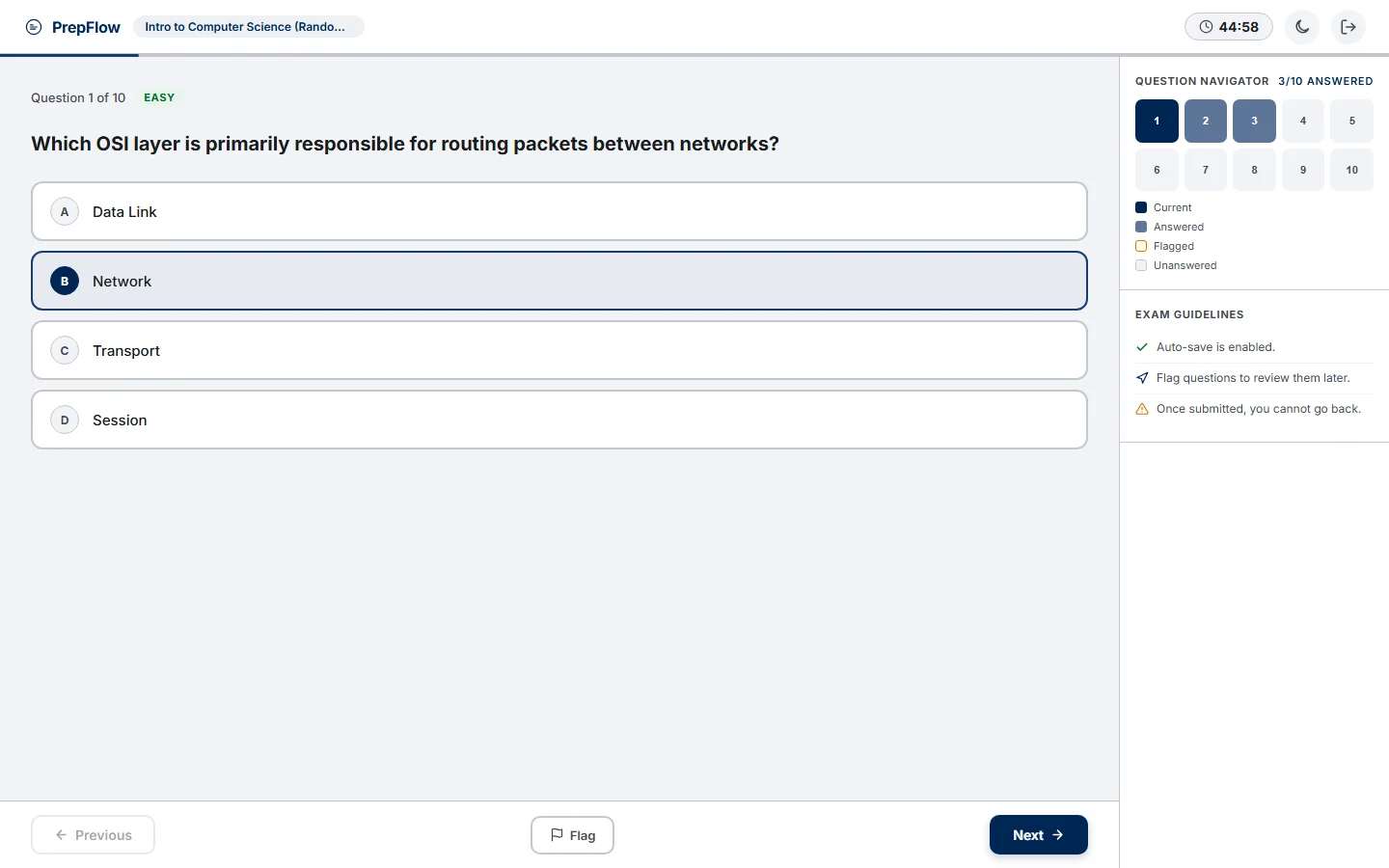
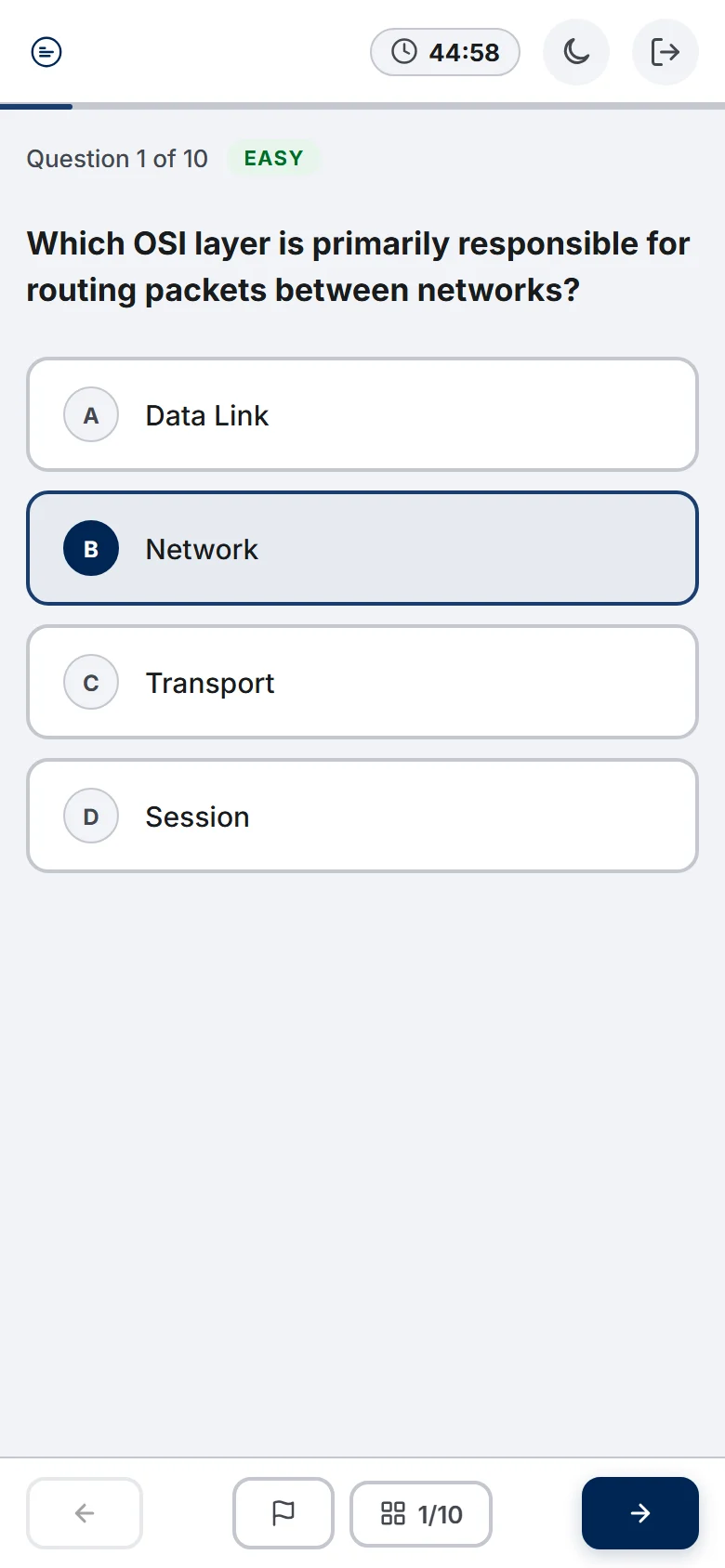
Pick an answer, then move on with Next. Your progress saves automatically, so a refresh or a dropped connection won't cost you your answers.
The Question Navigator on the right shows every question at a glance — click any number to jump straight to it. Use Flag to mark a question you want to come back to.
Tap the 1/10 button at the bottom to open the question navigator and jump to any question. The flag button marks a question you want to come back to, and the arrows move back and forward.
With Instant Feedback off (the default), every answer stays changeable until you submit.
10Your results
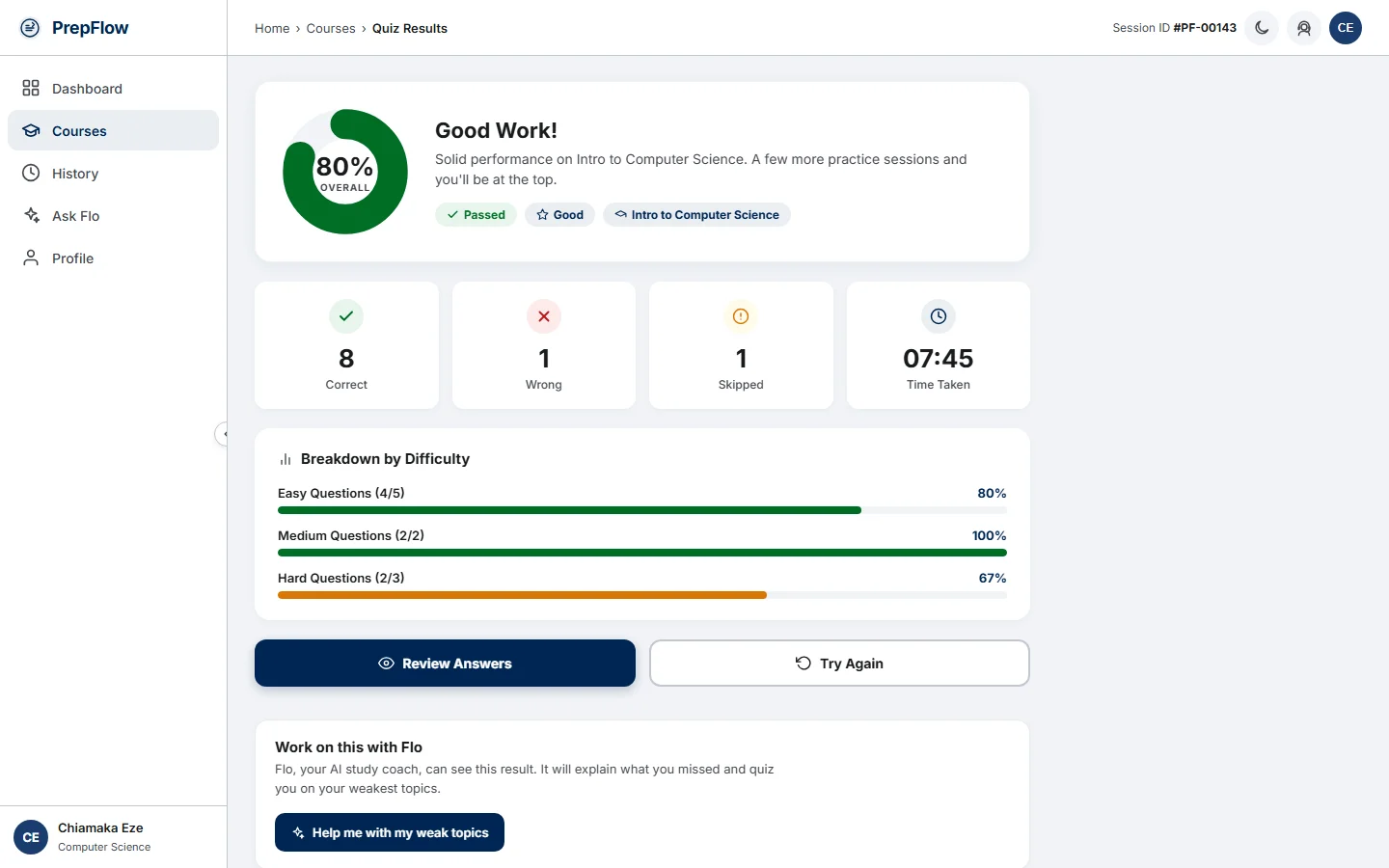
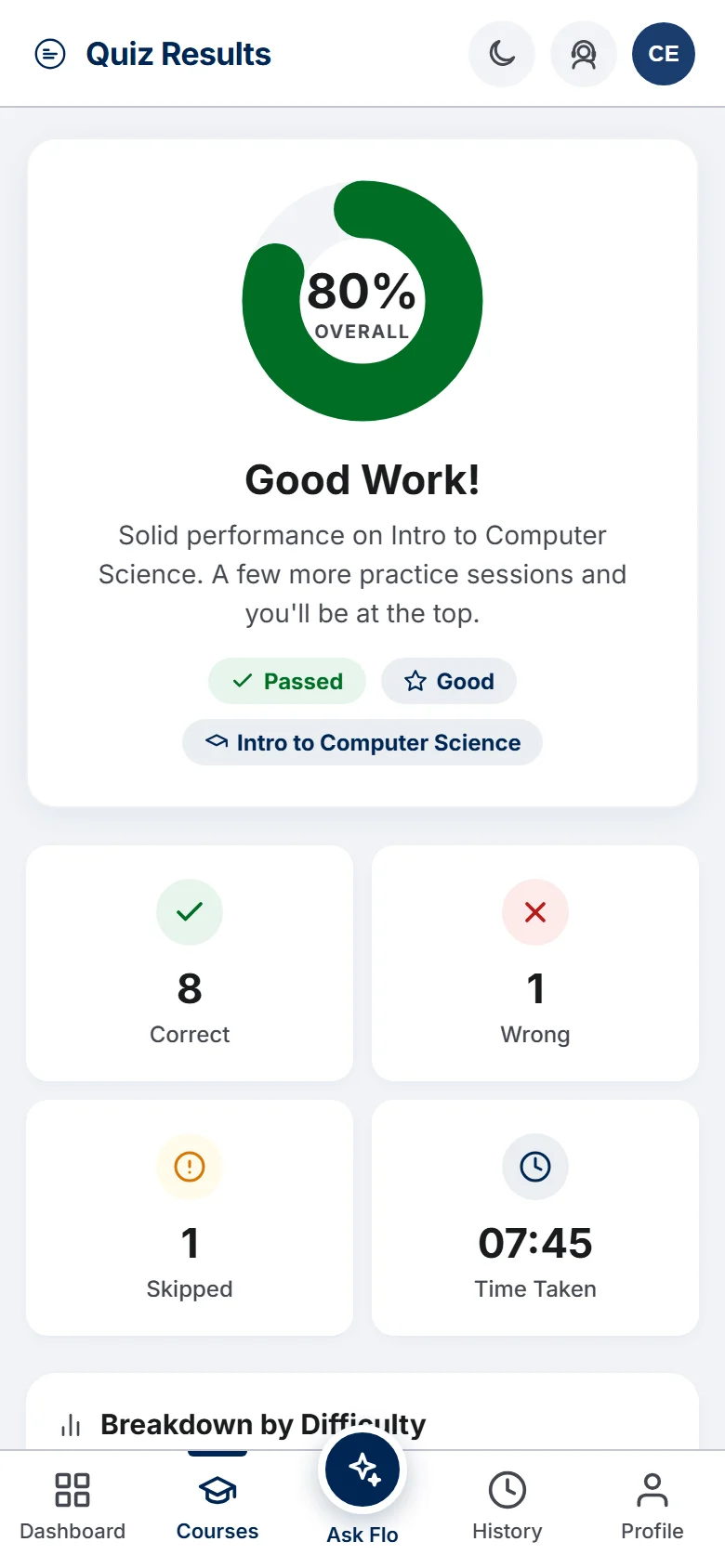
The moment you submit, you get your score, a correct / wrong / skipped breakdown, your time, and a breakdown by difficulty showing which level tripped you up. From here you can review your answers, try the same setup again, or move on.
- Work on this with Flo (Pro and Premium) — Flo can already see this result, so you can get help with your weak areas without leaving the page.
- Download your result — creates a shareable result card with your name, course, topic, score, time and date. The trophy shows a crown for 70% and above, three, two or one star for the 60s, 50s and 40s, and "Retry" below 40%. On most phones a Share button sends it straight to WhatsApp or Instagram.
- If it was a group session, a Group Practice banner links to the group's leaderboard.
11Reviewing answers
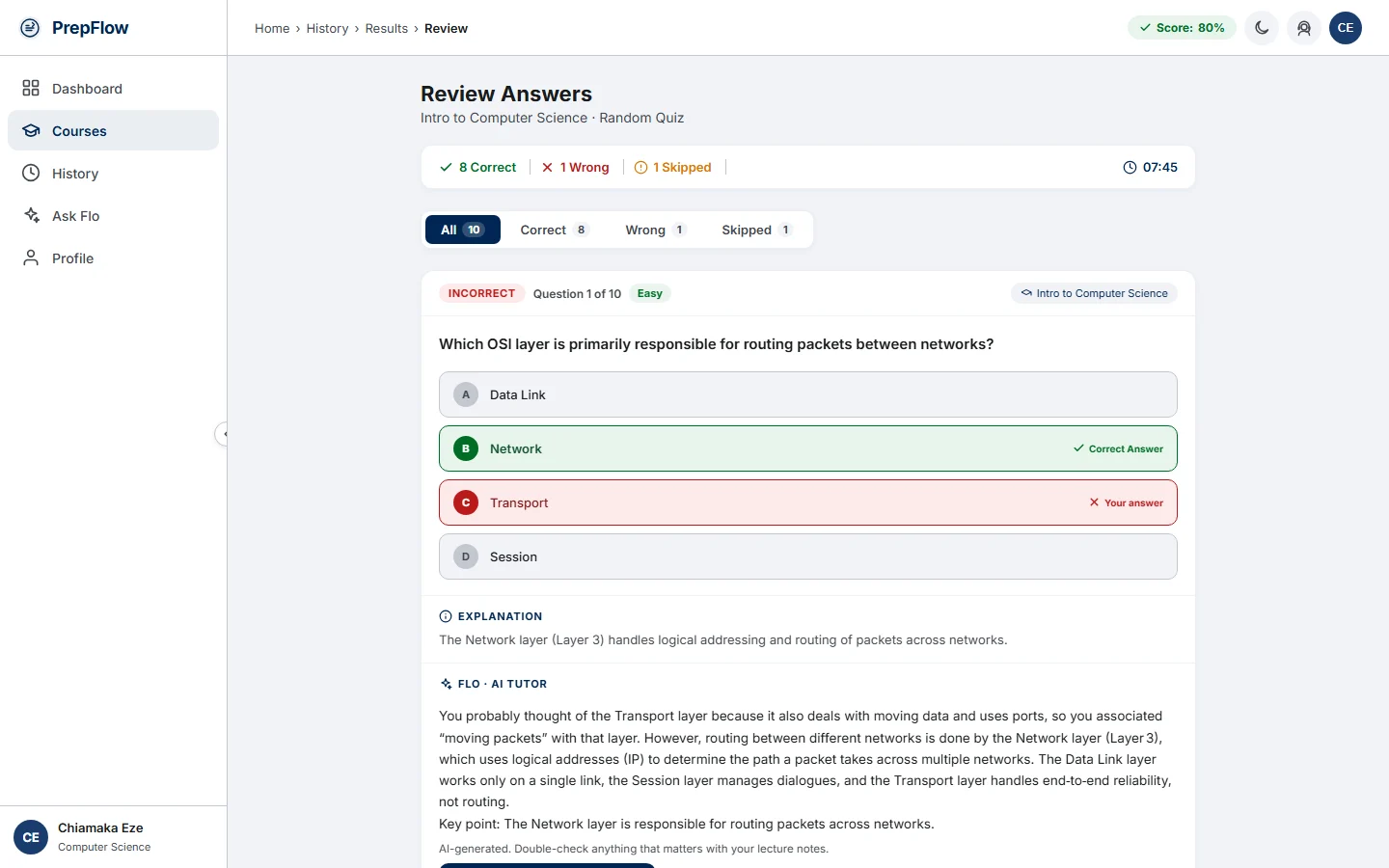
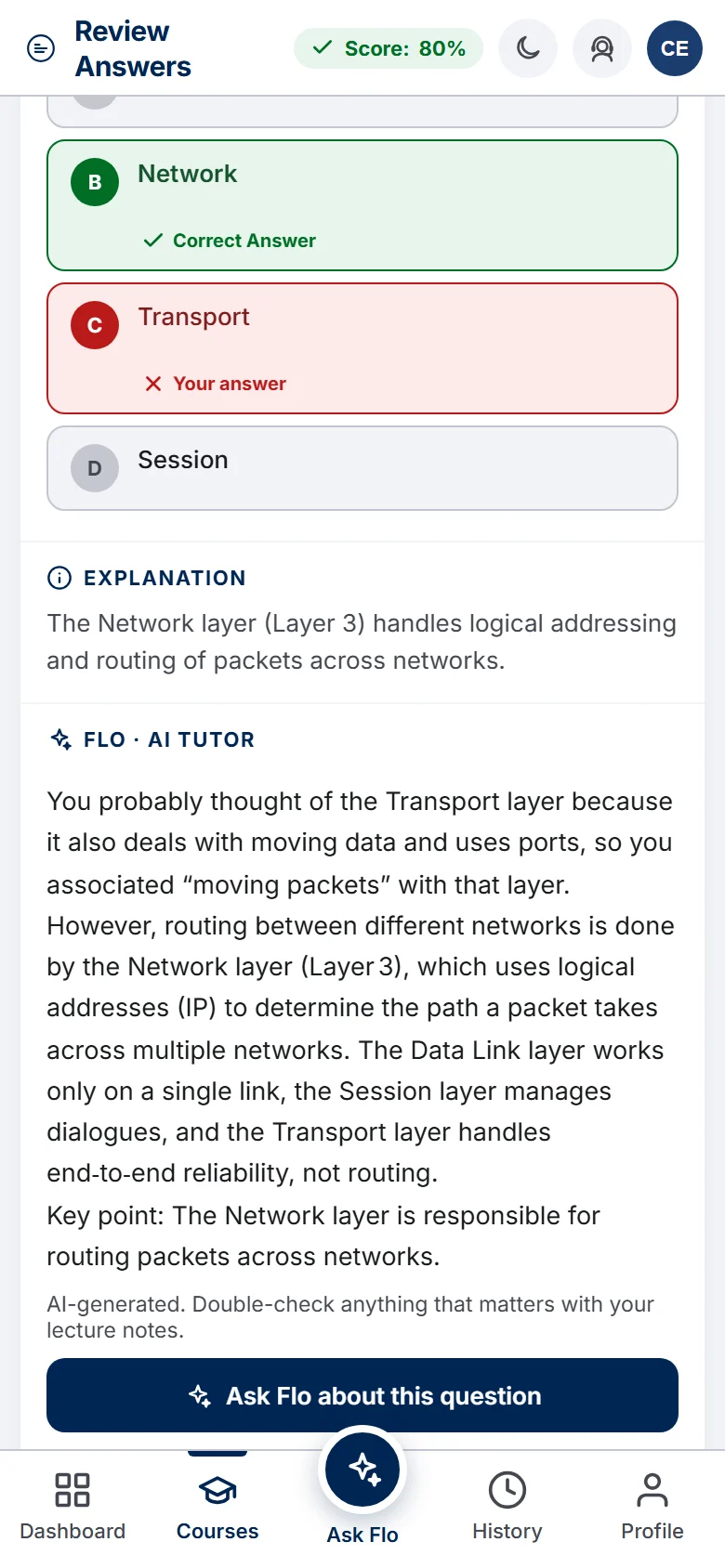
Every question is laid out with your answer, the correct answer and a written explanation. Filter to just the ones you got wrong to focus your revision — this is where the real learning happens.
On Pro and Premium, each question also has two AI buttons:
- Explain why I got this wrong — a short, plain explanation of the correct answer and where your choice went wrong, ending with the key point to remember.
- Ask Flo about this question — opens Flo with the question, your answer and the correct answer already filled in, so you can ask follow-up questions straight away.
12Practice with friends
Race your coursemates instead of practising alone. It works in three steps:
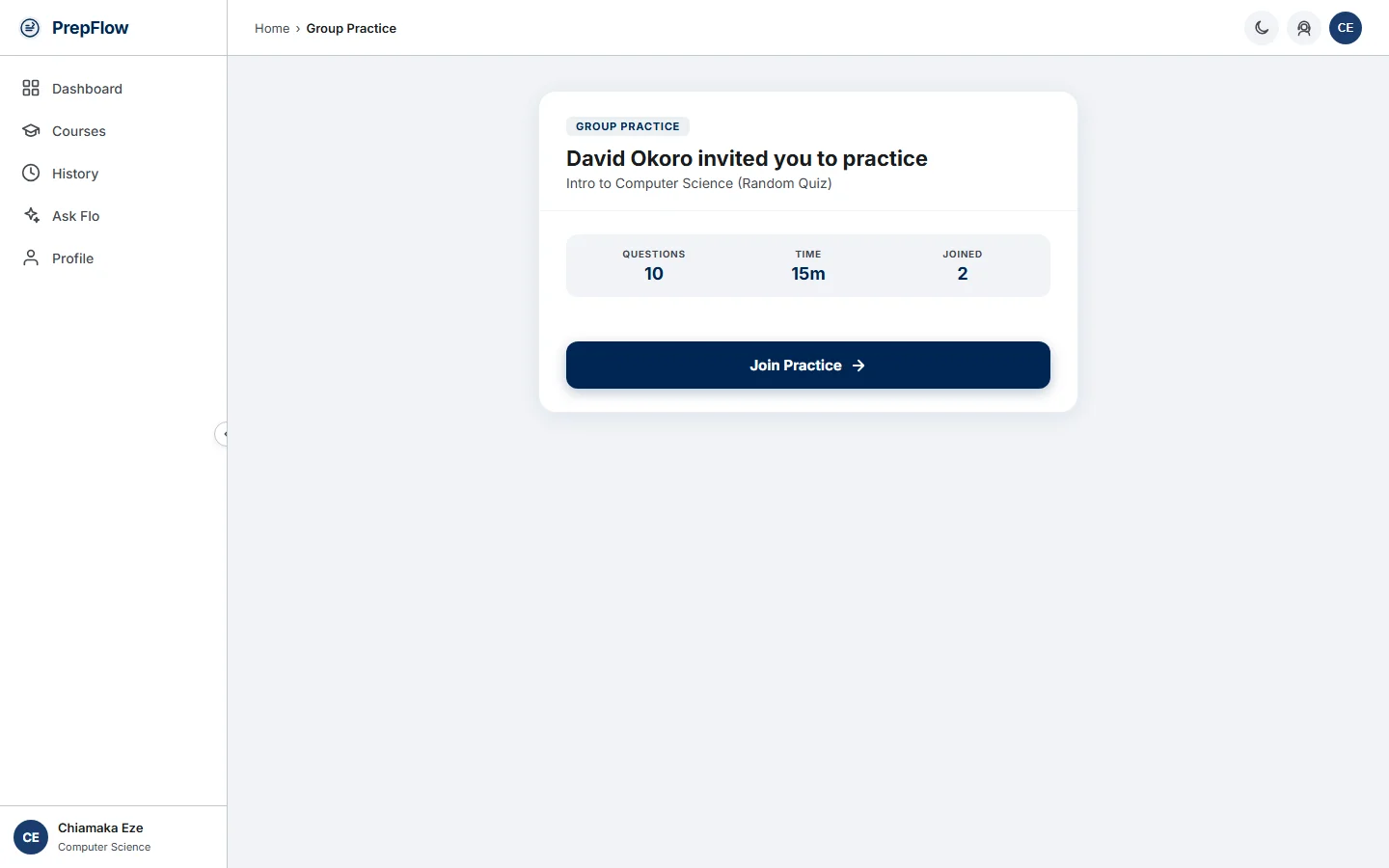
- Invite. Set up a quiz as usual, then tap Practice with Friends. PrepFlow creates a join code and an invite link like prepflow.com.ng/dashboard/group-join?code=E3HU6F. Send it to your friends — anyone at your university who opens it sees what they're joining and a Join Practice button.
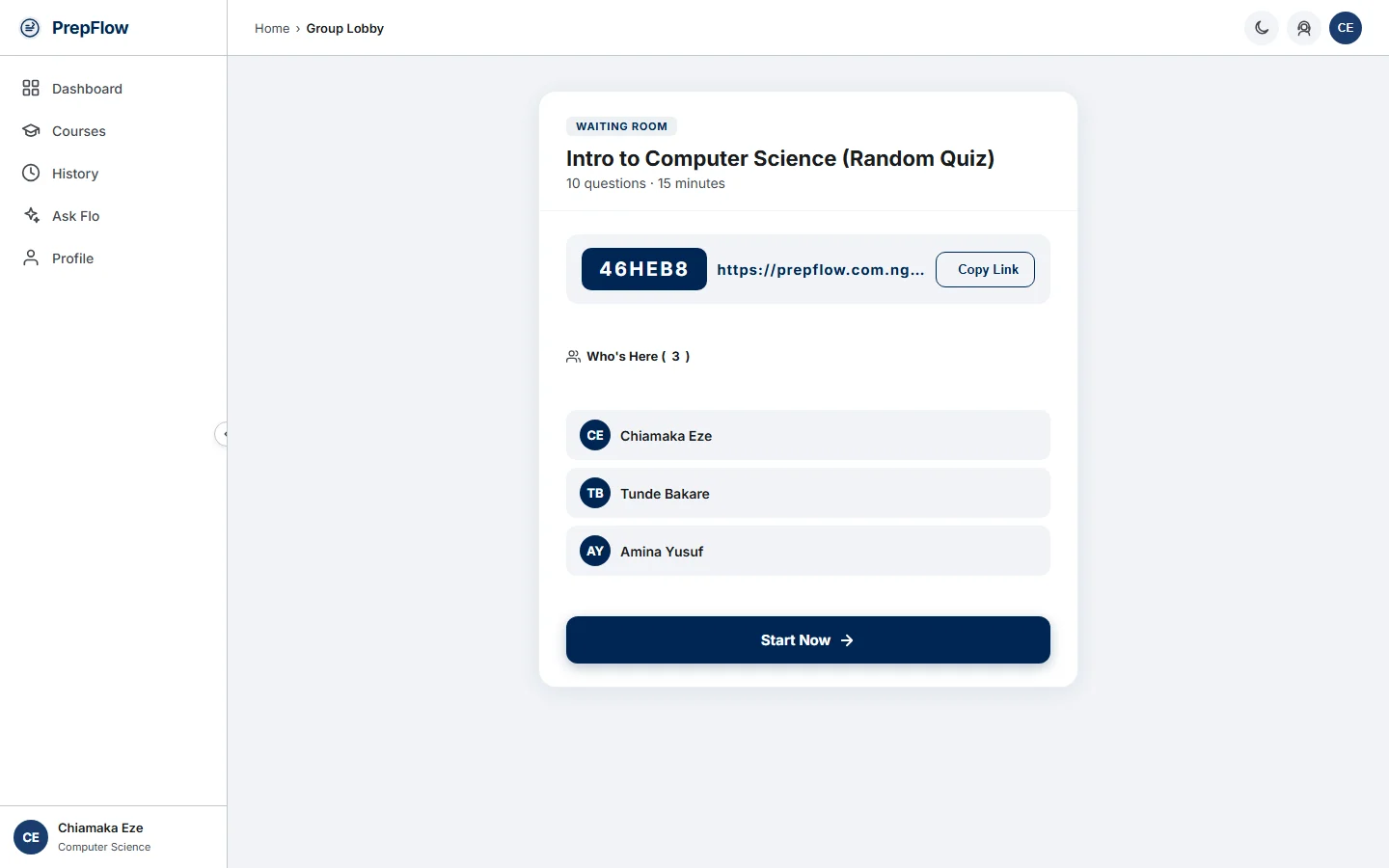
- Wait for everyone. Everyone who joins appears in the waiting room in real time. Nothing starts until the host taps Start Now, and after that the link stops working — so make sure everyone's in first.
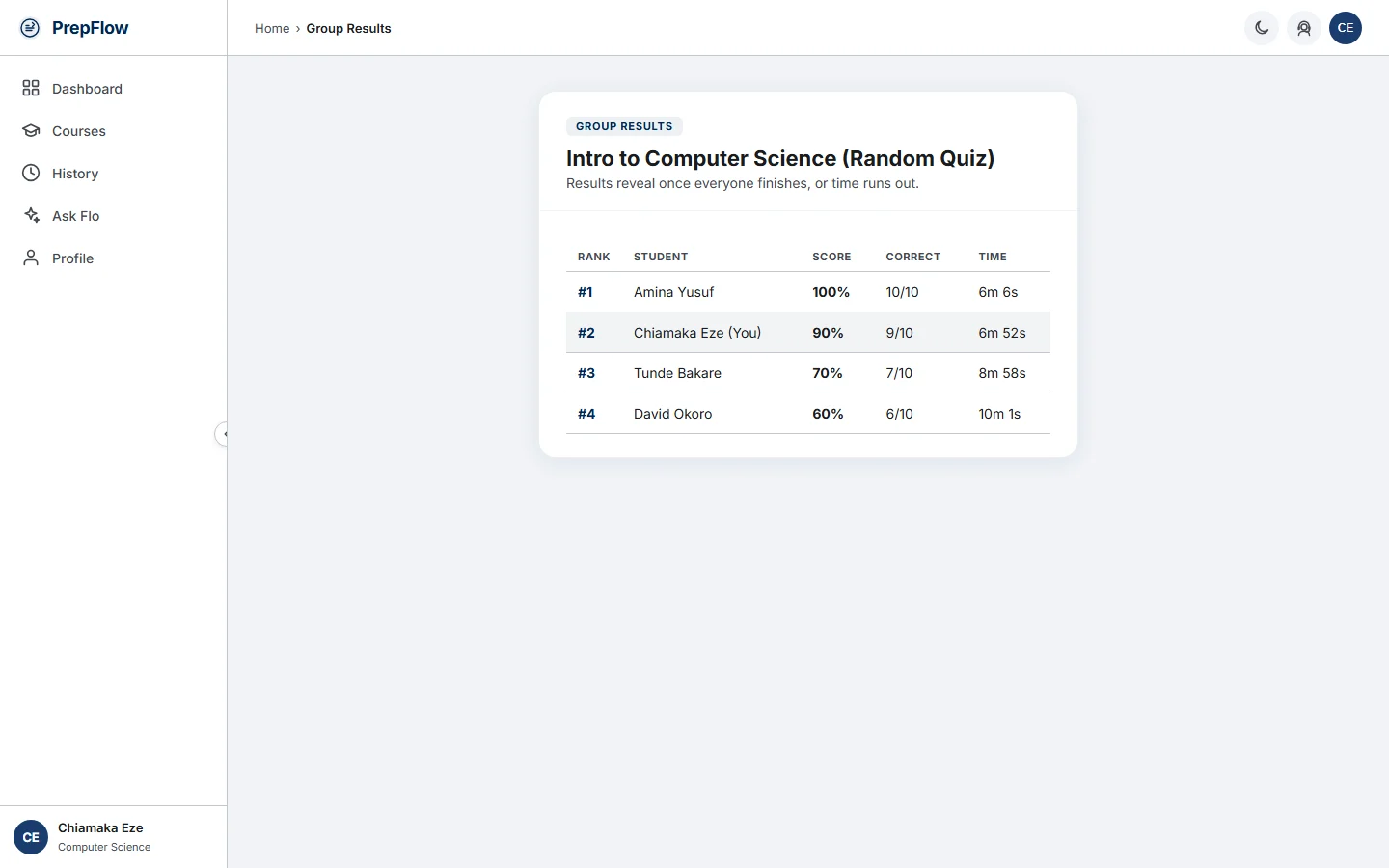
- Race, then compare. Everyone gets the same questions in the same order, against one shared countdown — joining a few seconds late never costs you time. Results stay hidden until everyone finishes or time runs out, then a ranked leaderboard opens for the whole group.
The invite
The waiting room
The leaderboard
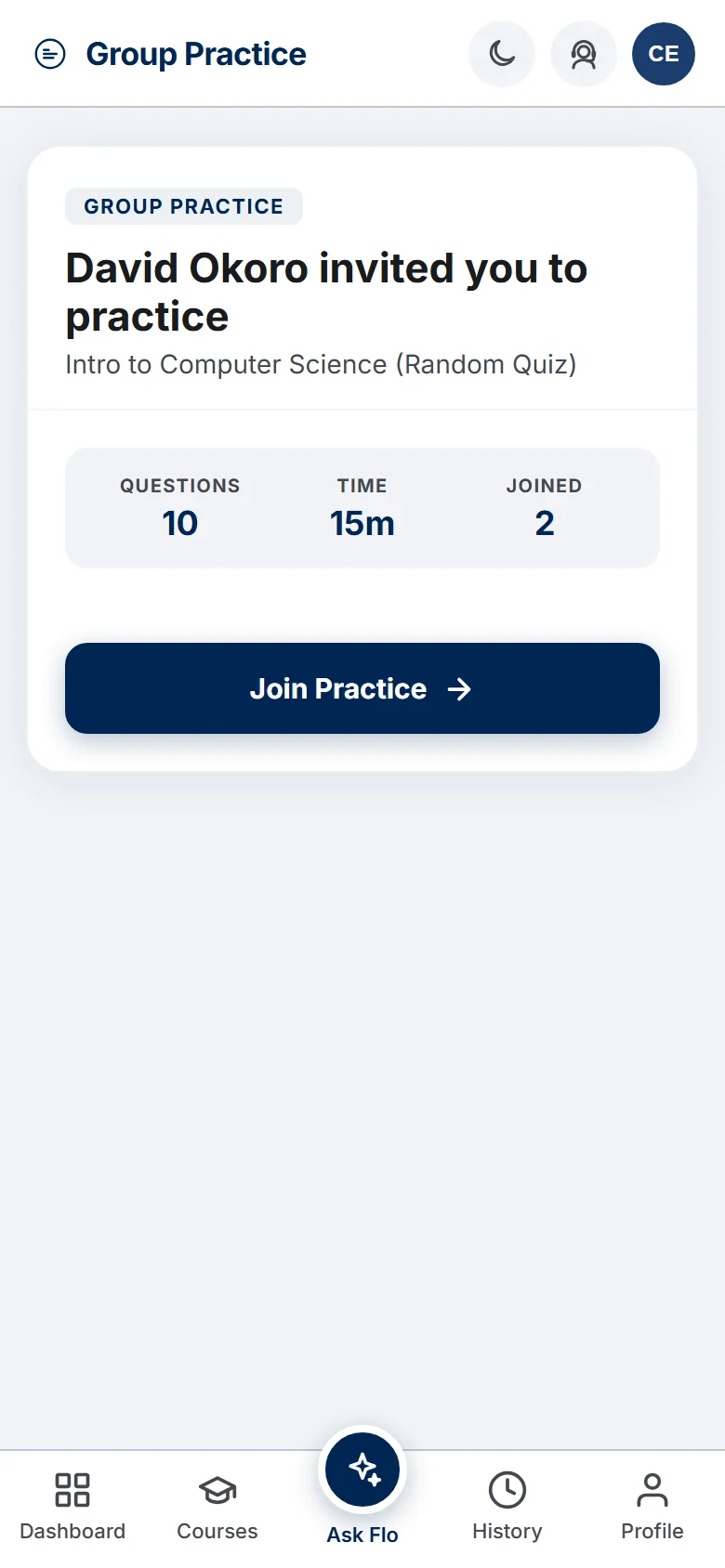
The invite
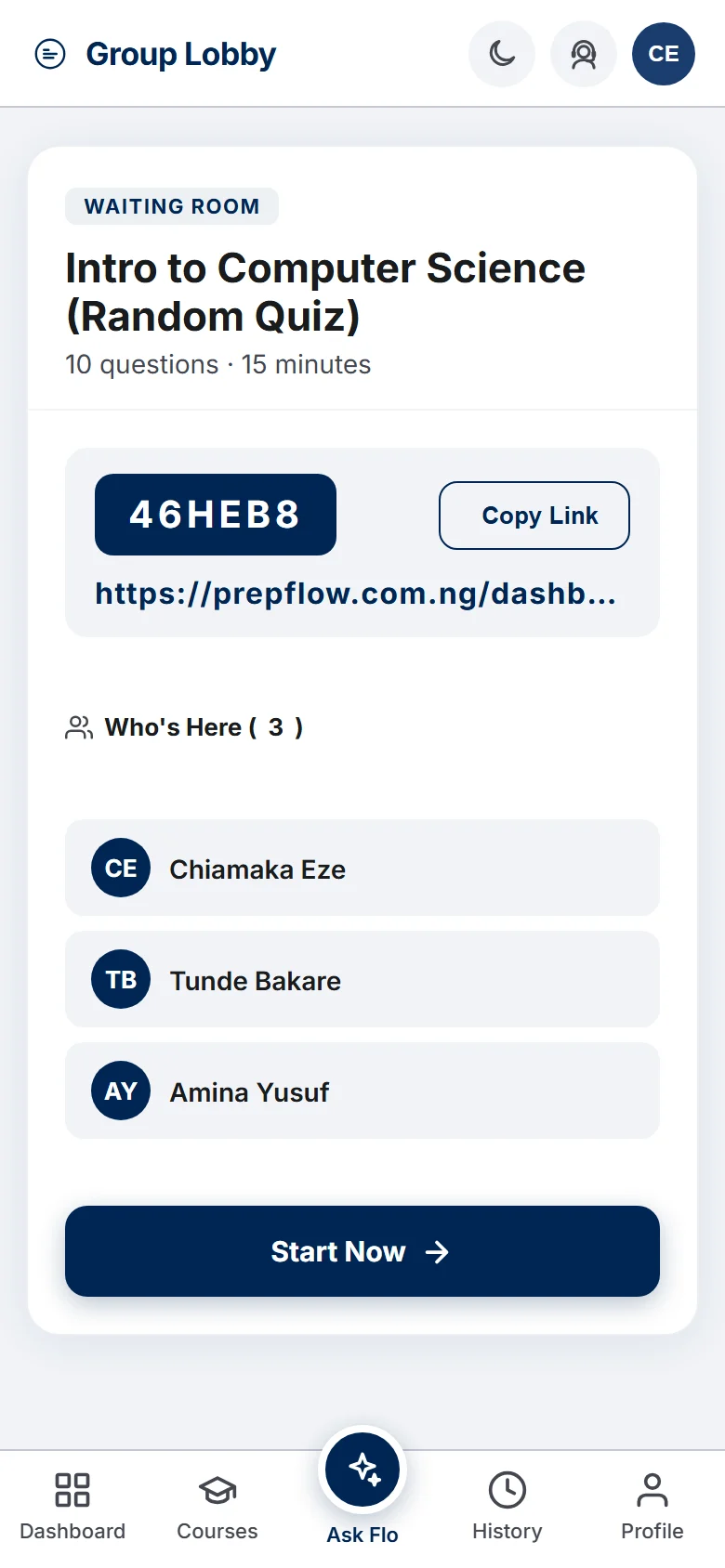
The waiting room
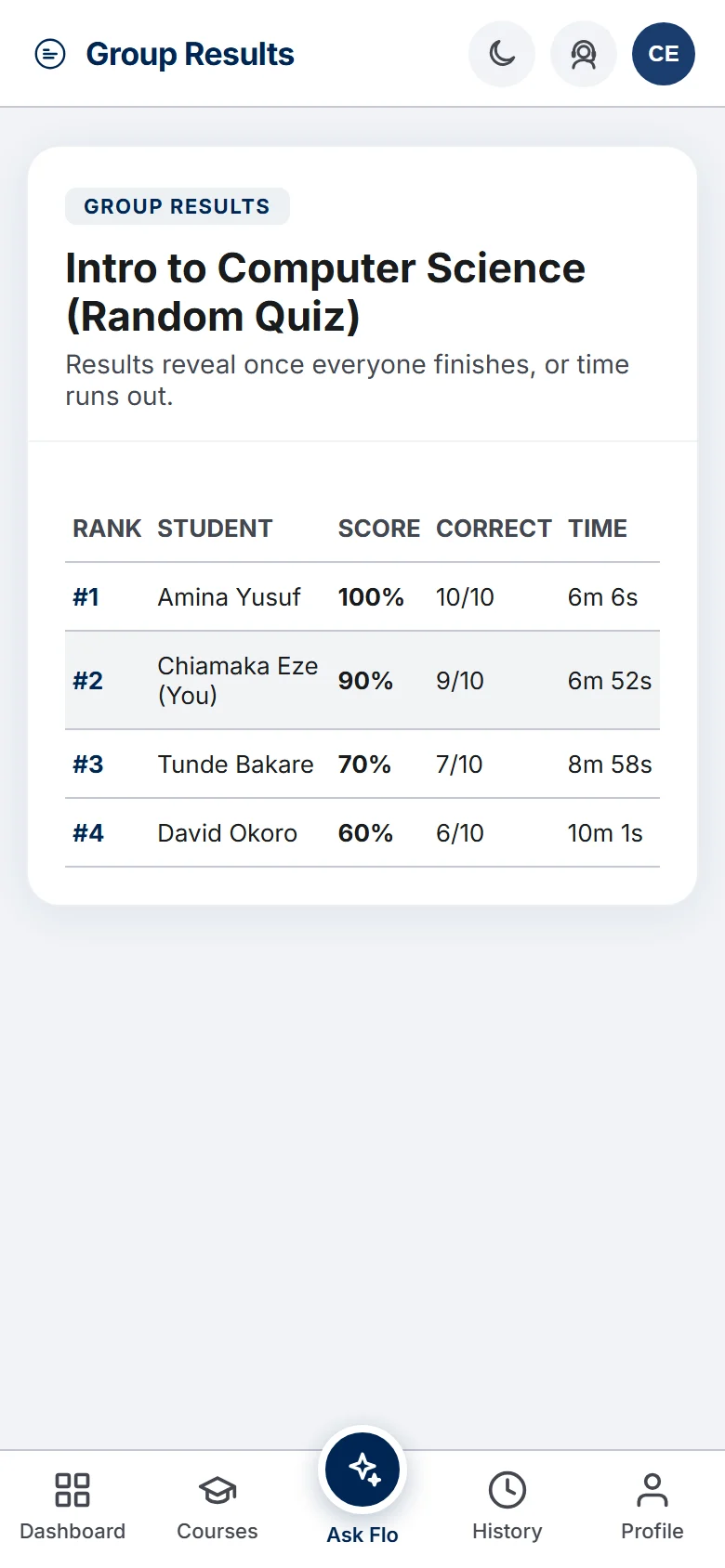
The leaderboard
You can always get back to a group's leaderboard: every group result page has a See Group Results banner, and every session you've hosted or joined is listed under Group Sessions on your Quiz history page.
AI study tools
13AI study tools: overview
PrepFlow's AI tools come with the Pro and Premium plans (and with their free 24-hour demos). There are three:
- AI explanations — on the review page, tap Explain why I got this wrong for a plain explanation of the correct answer. More in Reviewing answers.
- Flo, your AI study coach — chat about any of your courses: explain a topic, quiz you, or break down a past question. More about Flo.
- AI marking of practical answers — write your answer to a practical question and get a score out of 10 with feedback. More in Practical questions.
Each explanation, Flo reply or graded answer counts as one AI request. Pro includes a daily allowance and Premium is unlimited (see Plans & subscribing). Your allowance resets at midnight Nigerian time, and the AI buttons show how many requests you have left today.
On the Basic plan the AI buttons still appear but lead to an upgrade prompt. Upgrade any time from Profile → Upgrade plan — you only pay the difference.
14Flo, your study coach
Flo is PrepFlow's AI study coach. Open it from Ask Flo in the menu on the left in the middle of the bottom menu, pick a course, and ask anything: explain a topic, quiz me on it, compare two concepts, or walk through a past question. Flo answers using that course's own material on PrepFlow, and can show formulas and worked steps.
- Your chats are saved in the list on the left. Use the menu next to a chat to rename or delete it.
- Your chats are saved. Tap the clock icon at the top to see them all, and use the menu next to a chat to rename or delete it.
- Start fresh with the pencil icon (New chat).
- Tell Flo how it did — the 👍 and 👎 under each reply help us improve its answers.
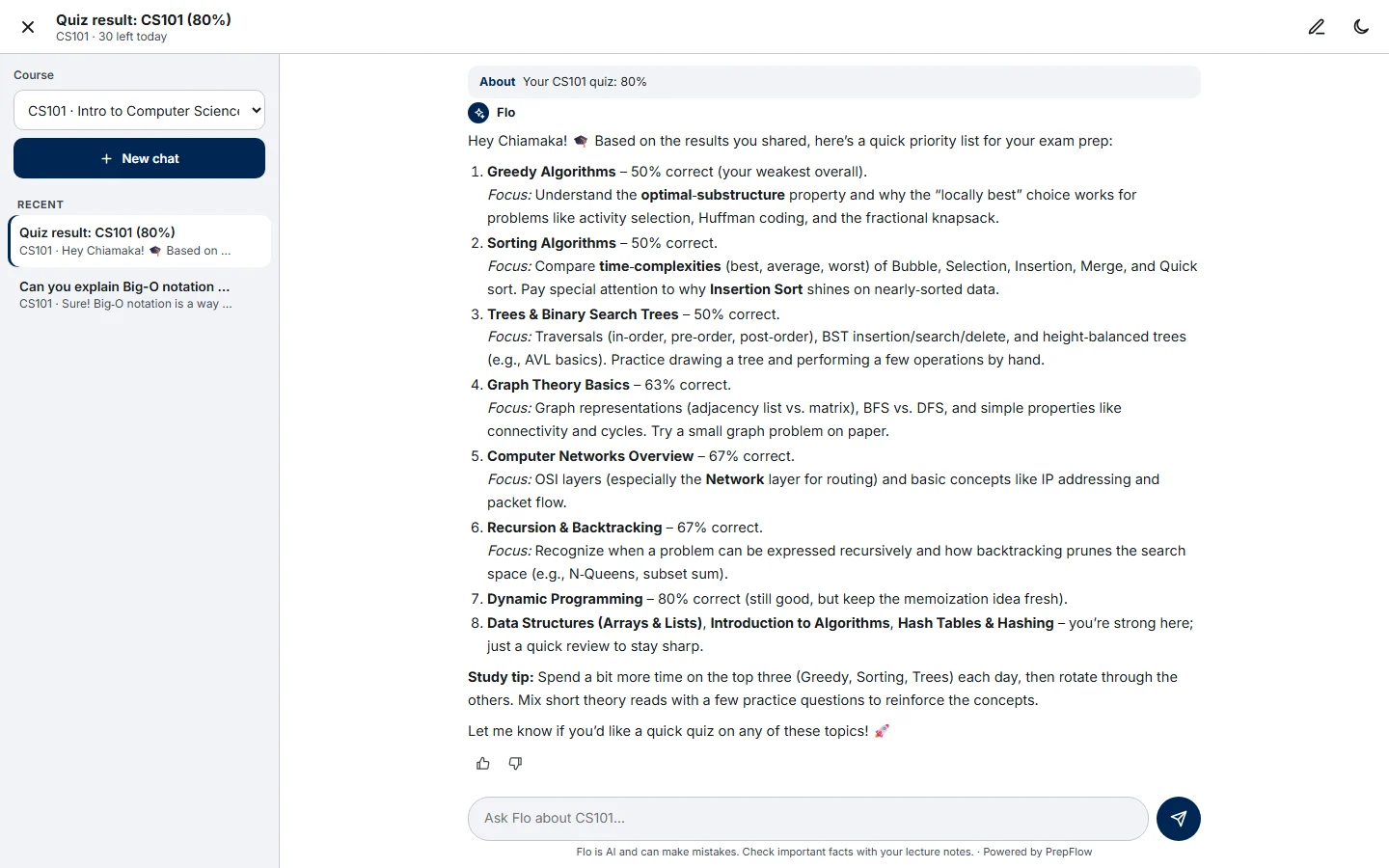
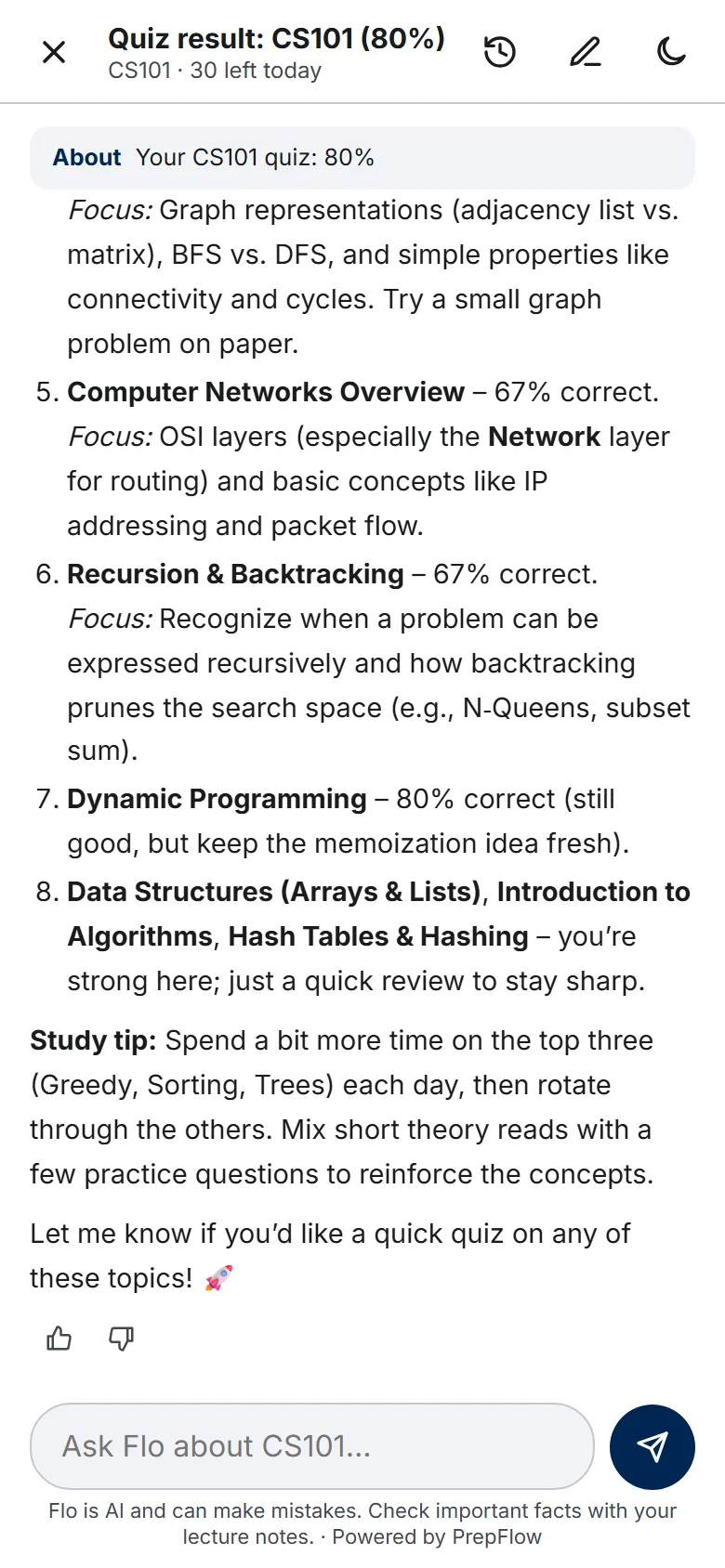
Flo is an AI — it's usually right, but it can make mistakes. Check anything important against your lecture notes.
15Practical questions
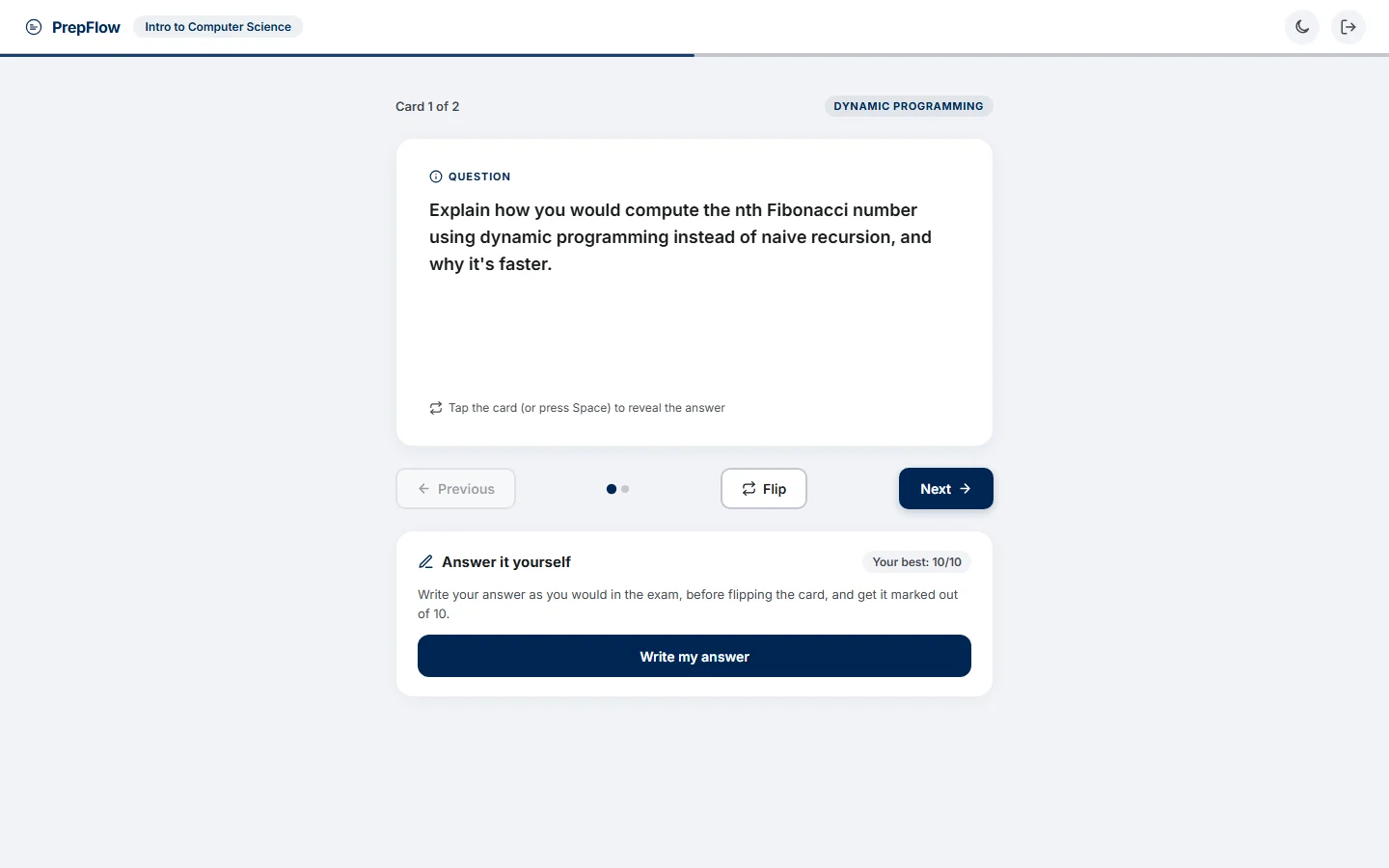
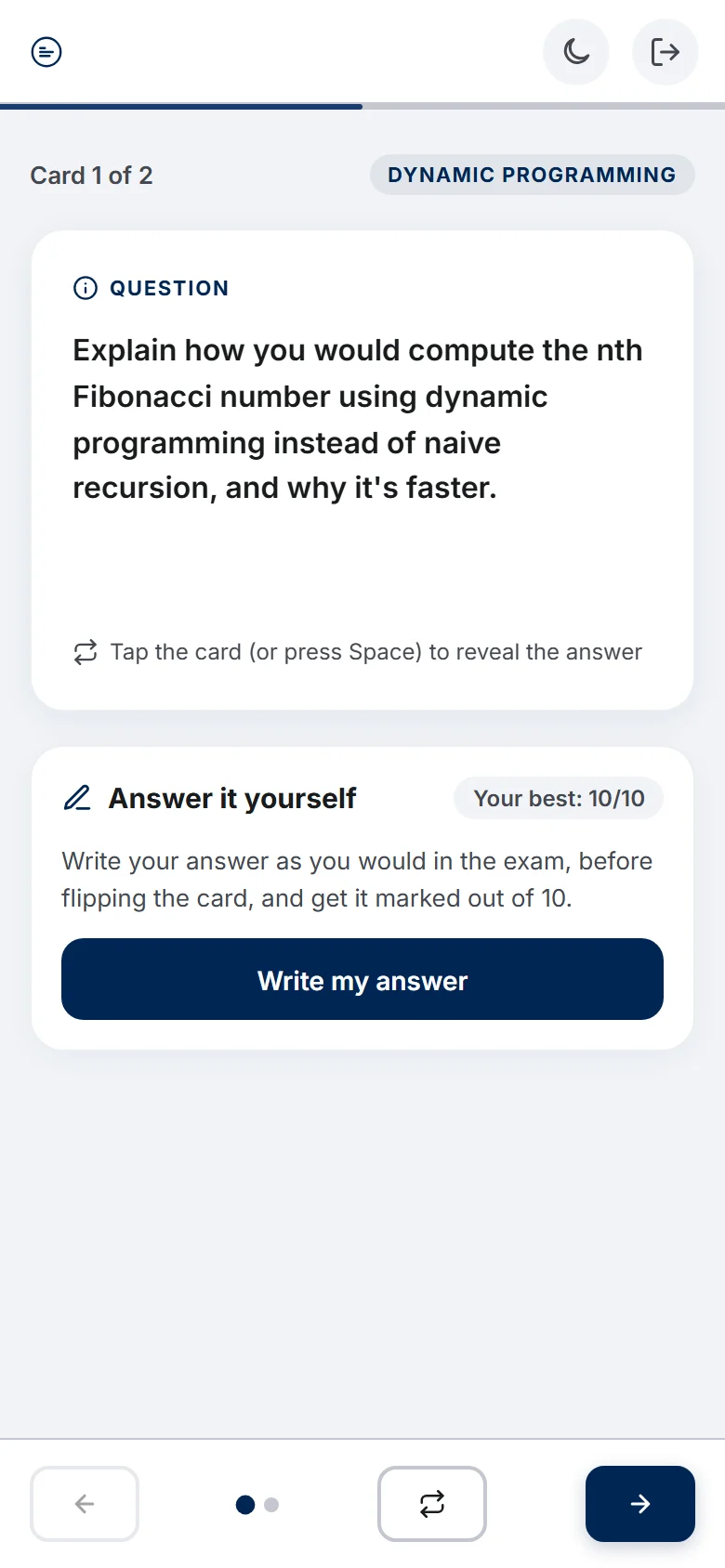
Some topics also have practical (written) questions. Open a course, then choose Practical on a topic to work through them as flip cards — the question on the front, the model answer on the back.
On Pro and Premium you can get your own answer marked before you flip the card:
- Tap Write my answer and answer as you would in the exam.
- Tap Grade my answer.
- Read your score out of 10, what you got right, what you missed, anything incorrect, and one tip to improve.
Your best score on each card is remembered, so you can try again and watch it go up.
Your account
16Quiz history
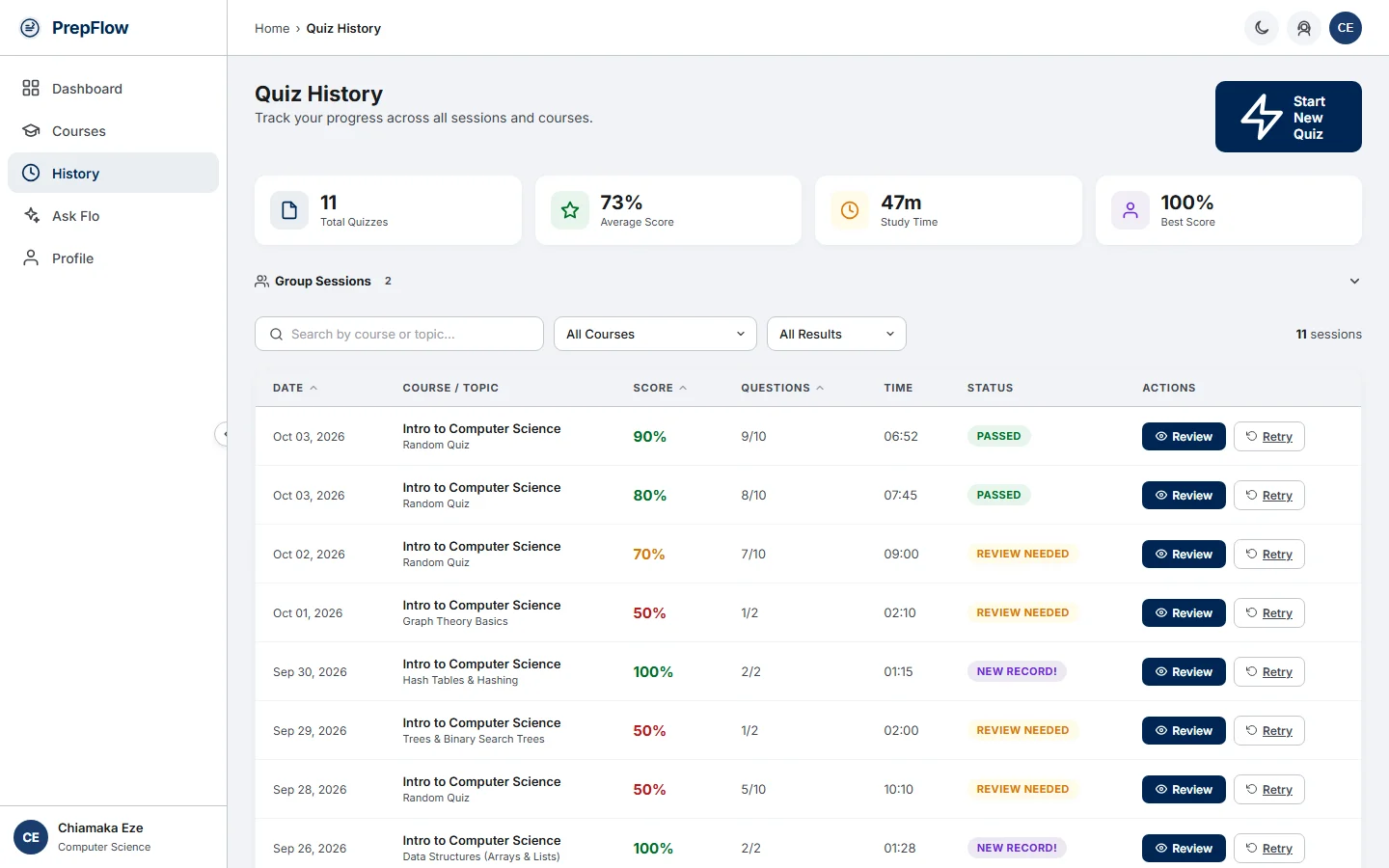
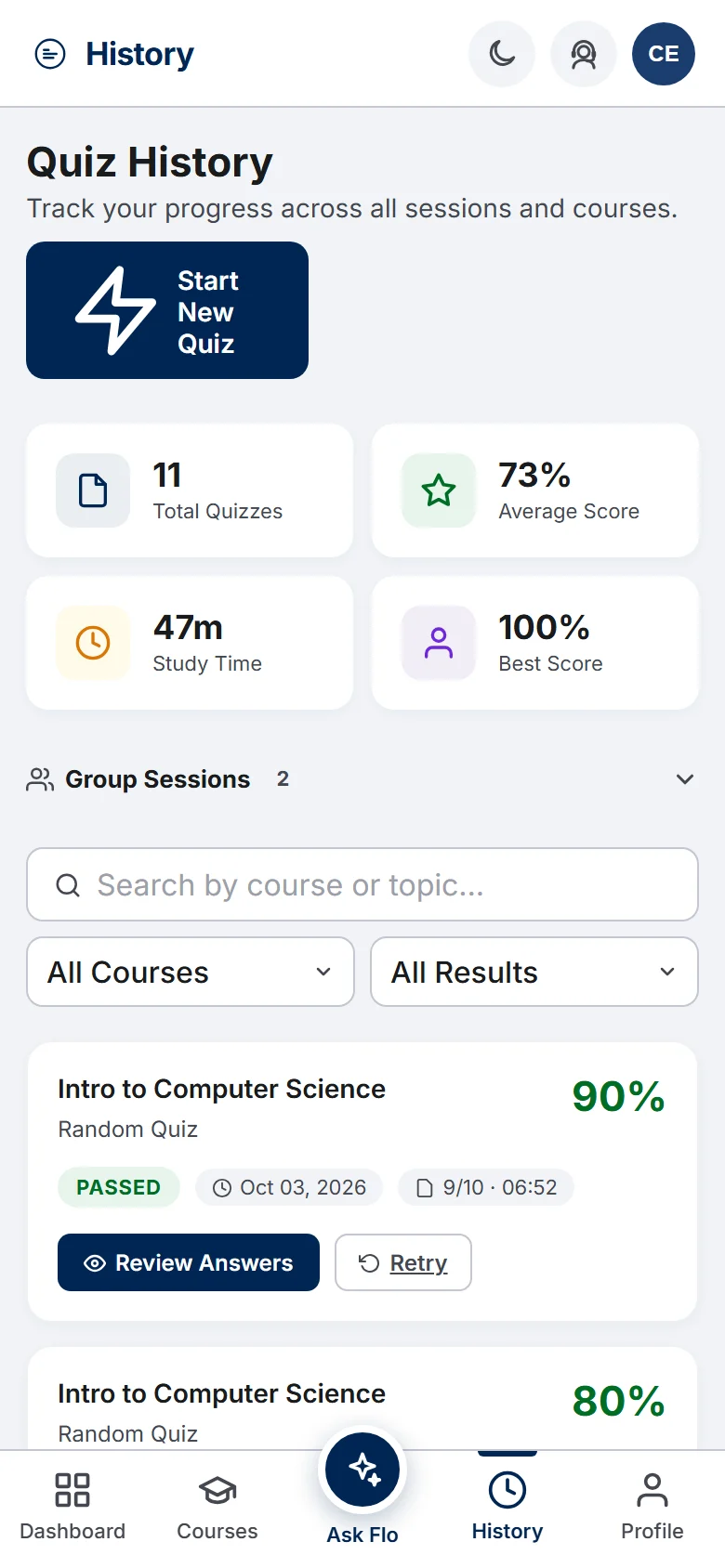
Every quiz you've completed lives here — search by course or topic and filter by result. The course filter only lists courses you've actually practised. Jump back into Review or Retry any past attempt.
Your most recent sessions come first, and more load automatically as you scroll down. A collapsible Group Sessions list above shows every group quiz you've hosted or joined, whether it's waiting, in progress or finished.
17Your profile
Update your name, department or photo, change your password, switch between light and dark mode, and track the achievement badges you've unlocked.
- Subscription — your current plan, its AI allowance and expiry date, with an Upgrade plan link.
- Email Notifications — turn the daily Course updates email on or off. It tells you when new courses, topics or questions are added for your department.
- Take the tour again — replays the dashboard tour.
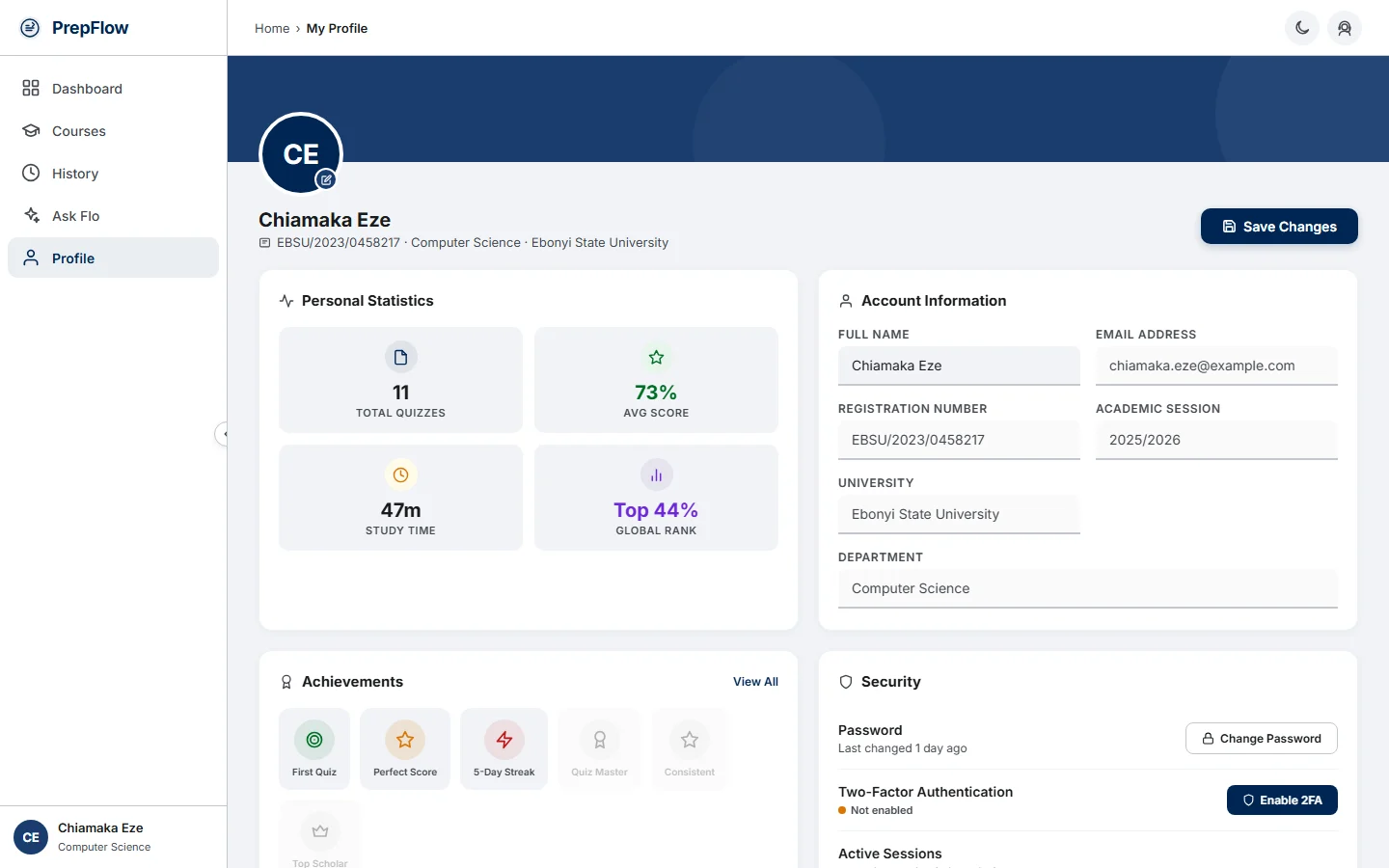
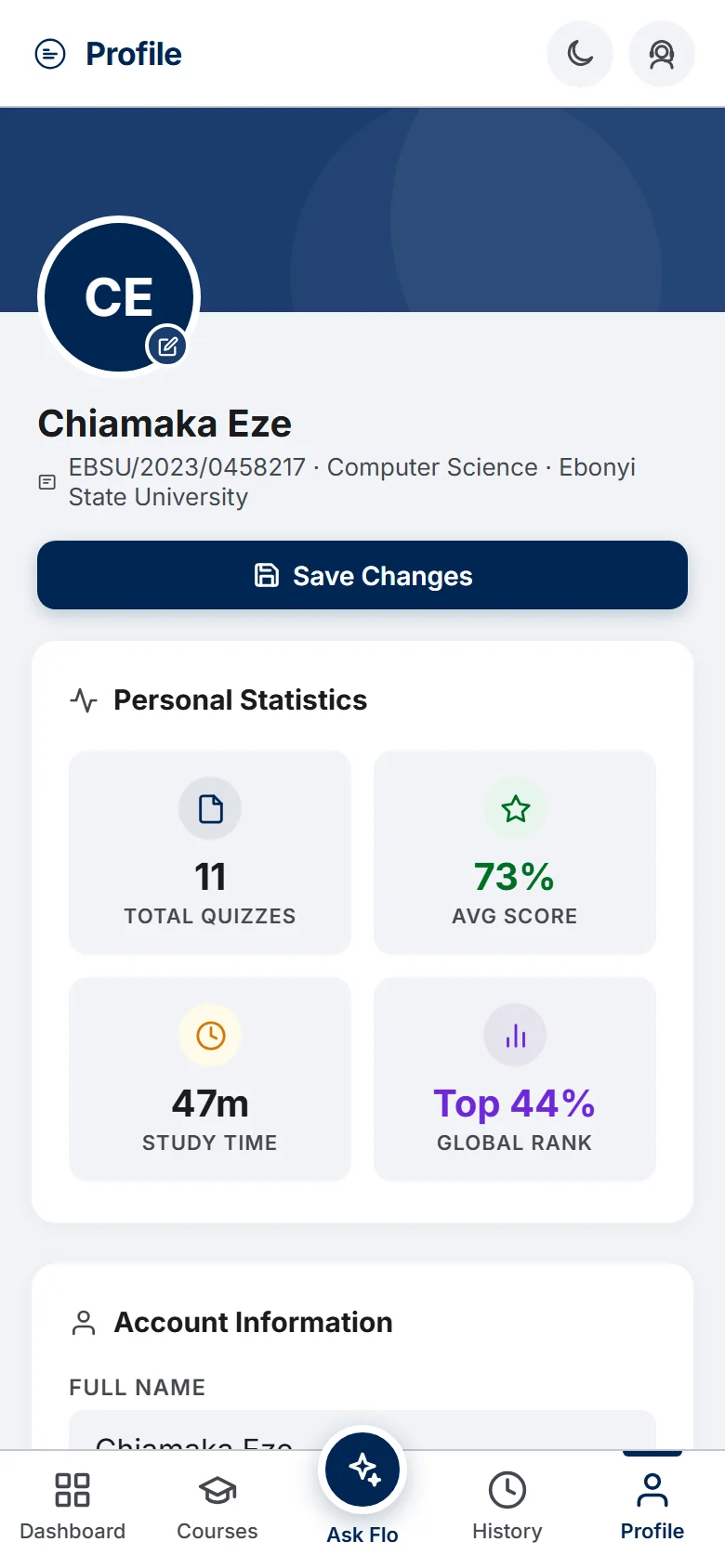
Your department can only be changed once every six months, and your university can't be changed yourself — if it's wrong, contact us (see Getting help). The Log Out button is at the bottom of the Security card.
18Getting help
The quickest way to get an answer is Help, PrepFlow's support assistant. It answers questions about plans, payments, quizzes and your account straight away, and it can see your own plan and AI allowance when you're logged in.
- In your dashboard — tap the Help icon (a person wearing a headset) in the top bar, next to the dark-mode button.
- On the website (home, FAQ, this guide…) — tap the Help button in the bottom-right corner.
- If Help can't answer, tap Send to our team — your chat is passed to us and we reply by email — or WhatsApp to chat with us directly. You can also tap Talk to a person at any time.
- Help is for questions about using PrepFlow. For help with course content, use Flo.
Most common questions are also answered on the FAQ page, and you can always reach us through the contact page.